Medications
Updated
The reference data the Tamanu Medications Module needs, and the values each column accepts. Reference data is configured through the reference data import spreadsheet, downloaded from and uploaded to your Tamanu system. Records can also be added and edited one at a time on the Manage tab of the Reference data screen in the admin panel.
For the settings that govern prescribing and administration see Settings, and for the permissions required see Permissions.
Reference Data Types
See the Tamanu Reference Data Manual for how importing works.
Drug
The Drug reference data type configures the medication list available when prescribing.
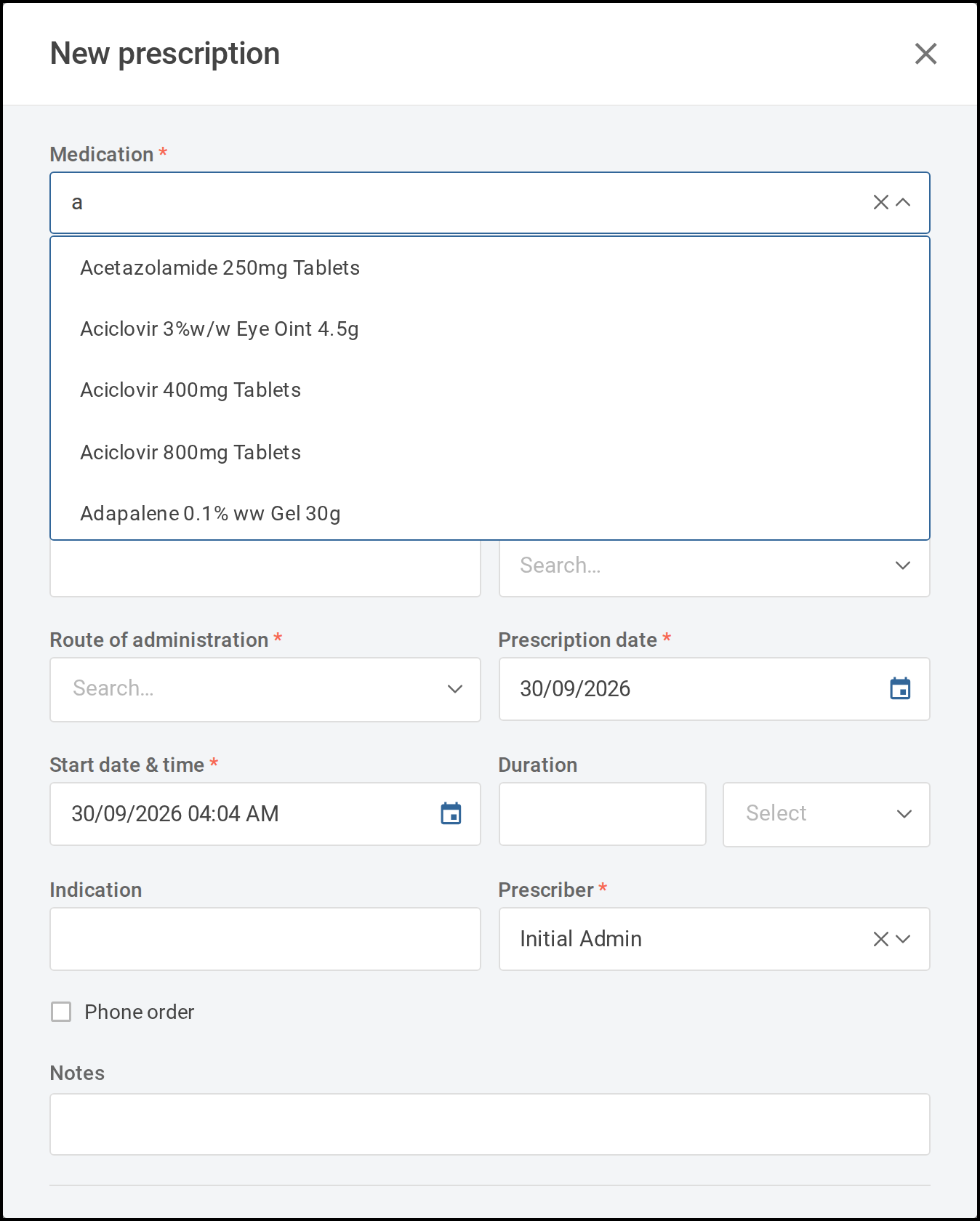
For a deployment where mSupply is also in use, the drugs list should be copied from the mSupply essential medicines list.
Set default values per medication for route, dosingUnit, dispensingUnit and notes. When that
medication is selected for prescription the defaults populate automatically, which speeds up creating
prescriptions.
| Field | Value |
|---|---|
| Tab name | Drug |
| Example template | Drugs reference data template |
Where * is a required field.
| Column name | Description |
|---|---|
| id * | Unique id for the drug. Letters, numbers and hyphens only. |
| code * | Unique code for the drug. Letters, numbers, hyphens, full stops and forward slashes only. |
| name * | Name for the drug, up to 255 characters. This is the medication name displayed in Tamanu. |
| visibilityStatus | current for drugs available for prescription, or historical for drugs that should not be prescribed and should not appear in Tamanu. Defaults to current if blank. |
| systemRequired | Marks the record as required by the system so it cannot be removed. Leave blank unless instructed. |
| availableFacilities | Restricts the drug to specific facilities. Must be a JSON array of facility ids, for example ["facility-a", "facility-b"]. Leave blank for all facilities. |
| route | The pathway through which the medication enters the body. Use one of the routes listed under Route of administration. This column is not validated on import, so an unrecognised value is accepted and will not display correctly. If no default is set, the user selects the route when prescribing. Leave blank if no default is required. |
| dosingUnit | The unit the medication is prescribed in, and the unit displayed on the medication administration record. Must be one of the units listed under Units. If not set, the user selects the unit when prescribing. |
| dispensingUnit | The unit pharmacy dispenses the medication in, used for invoicing. Must be one of the units listed under Units. Defaults to the dosing unit if not set. |
| unitConversion | Converts a prescribed dose into the correct number of dispensing units. Defaults to 1 if not set. |
| notes | A default note for the medication, such as instructions for administering or taking it. If not set, the field is empty by default when the medication is prescribed. Leave blank if no default is required. |
| isSensitive | Flags a medication as sensitive, so only users with the required permissions can view it. Input TRUE to set a medication as sensitive. Defaults to non-sensitive if blank. See Sensitive medications. |
Stock levels are recorded in additional columns, one per facility, as described below.
Stock levels
To record stock levels for a facility, add a column whose header is that facility's id. There is no
column named facilityId: any column header that is not one of the columns above is read as a facility
id, and its cells set that facility's stock level for each drug:
0: medication out of stock1or above: medication in stock- blank: stock levels are unknown
unavailable: the medication is unavailable at that facility and does not appear in the medication dropdown when creating a new prescription. Unavailable medications can still be recorded through the ongoing medications table at the patient level
Because facility columns are read from the header, a blank cell still creates a stock record for that facility with an unknown stock level.
A header that is not a real facility id fails the import, reporting that some facilities do not exist or have been deleted. A mistyped facility id is the usual cause, since any unrecognised header is read as one.
An export writes these columns back as the stored value: the number where a quantity was recorded, and
otherwise the status itself, as out_of_stock, unavailable or unknown. A re-imported export is
read the same way, so a round trip is safe.
Where a facility has mSupply as its source of truth for stock on hand, the importer does not overwrite that facility's stock levels. See the Dispensing configuration guides.
Medication Sets
A medication set is a pre-configured group of medications commonly prescribed together for a specific condition or protocol, enabling faster ordering and standardised care.
An example medication set is a standard set of medications prescribed following surgery:
- Amoxicillin 500mg capsules, three times daily, orally, for 7 days
- Oxycodone 10mg capsules, two times daily, orally, for 2 days
- Paracetamol 500mg tablets, up to four times daily as needed, orally, for 7 days
Two reference data types configure medication sets: Medication Template and Medication Set.
Medication Template
Medication Template defines the default prescription details for each medication within a set.
| Field | Value |
|---|---|
| Tab name | Medication Template |
| Example template | Medication Template reference data template |
Where * is a required field.
| Column name | Description |
|---|---|
| id * | Unique id for the medication template. This id is referenced when configuring Medication Set reference data. A single template can be used across multiple sets. |
| code * | Unique code for the medication template. |
| name * | Unique name for the medication template. |
| medication * | The id of the medication from the Drug reference data. The drug must already exist. |
| dosingUnit * | The unit for the dose. Must be one of the units listed under Units. |
| frequency * | Must be one of the frequencies listed under Frequency. |
| route * | Must be one of the routes listed under Route of administration. The display label is also accepted, so both intravenous and IV work. |
| doseAmount * | The numerical dose amount, or the word variable where the dose is variable. The cell cannot be left empty. |
| ongoingMedication | Input TRUE if the medication should default to ongoing. Defaults to FALSE. |
| prnMedication | Input TRUE if the medication should default to PRN. Defaults to FALSE. |
| duration | The length of time and time unit, for example 7 days. Supported units are hours, days, weeks and months. Both the length and the unit must be given together. Leave blank if no default duration is required. |
| notes | Default notes relevant to the medication, such as instructions for taking it. Leave blank if no default is required. |
| dischargeQuantity | Default quantity of medication units given to the patient. Leave blank if no default is required. |
| visibilityStatus | current or historical. Defaults to current if blank. |
A duration cannot be set when the frequency is Immediately, or when the medication is flagged as
ongoing. The import reports an error in both cases.
Medication Set
Medication Set defines which medications are included in a set. Import it after, or at the same time
as, Medication Template so the templates it references already exist.
| Field | Value |
|---|---|
| Tab name | Medication Set |
| Example template | Medication Set reference data template |
Where * is a required field.
| Column name | Description |
|---|---|
| id * | Unique id for the medication set. |
| code * | Unique code for the medication set. |
| type * | Always medicationSet. |
| name * | Unique name for the medication set. |
| medicationTemplates * | The medication template ids included in the set, separated by commas. A single template can be used across multiple sets. This column is not validated on import, so an empty cell is accepted and leaves the set unchanged rather than reporting an error. |
| visibilityStatus | current for sets available for ordering, or historical for sets that should not appear in Tamanu. Defaults to current if blank. |
The medicationTemplates cell is the complete list for that set. Templates removed from the cell are
removed from the set on the next import. Listing the same template twice, or naming a template that
does not exist, reports an error.
Clearing the cell entirely does not empty the set. To remove every medication from a set, set its
visibilityStatus to historical instead.
Prescriber
The list of prescribers is populated from the active users in your Tamanu deployment. To add a new user, see Users: Creating and Managing Users.
Medication Not Given Reason
This reference data type must be configured to complete the medication administration record workflow when a medication is recorded as not given. Without it, staff cannot record a medication as not given.
| Field | Value |
|---|---|
| Tab name | Medication Not Given Reason |
| Example template | Medication Not Given Reason reference data template |
Where * is a required field.
| Column name | Description |
|---|---|
| id * | Unique id for the not given reason. |
| code * | Unique code for the not given reason. |
| name * | Unique name for the reason not given. |
| visibilityStatus | current for reasons available for selection, or historical for reasons that should no longer be available. Defaults to current if blank. |
Hard coded fields
The following fields are hard coded in Tamanu and cannot be configured. To request a new value, make a request to your system administrator or Tamanu project manager.
Units
Used for dosingUnit and dispensingUnit. Input the value exactly as shown.
%, Ampule, Applicator, Bag, Blister Pack, Bottle, Box, Can, Canister, Capsule,
Carton, Cartridge, Disc, Douche, Drop, Each, FFU, g, Inhaler, IU, Jar, Kit,
L, Lozenge, Million units, mg, mcg, mL, mmol, mol, Pack, Package, Patch,
Pellet, Pen, Pouch, Puff, Ring, Roll, Sachet, Smear, Spray, Stick, Strip,
Suppository, Swab, Syringe, Tablet, tbsp, Tin, Tray, tsp, Tube, U, Vial, Wafer
Each unit also has a short label used where the design requires a more compact display, for example
Tab for Tablet and Supp for Suppository. Units are also pluralised on dispensed labels where
the dose is more than one, and each dosing unit carries an administration verb such as Take, Give,
Apply, Insert, Inhale or Administer, which appears on patient-facing instructions.
Route of administration
Input the value shown in the left column. Where a route displays differently in Tamanu, the display label is shown alongside it.
| Value | Displays as |
|---|---|
| dermal | Dermal |
| ear | Ear |
| eye | Eye |
| inhaled | Inhaled |
| intramuscular | IM |
| intraocular | Intraocular |
| intravenous | IV |
| intravitreal | Intravitreal |
| nasal | Nasal |
| oral | Oral |
| rectal | Rectal |
| subcutaneous | S/C |
| sublingual | Sublingual |
| topical | Topical |
| vaginal | Vaginal |
Frequency
Tamanu includes a list of frequencies supporting common dosing patterns. The selected frequency determines the default administration schedule for the prescribed medication, which can be edited when prescribing.
| Frequency | Default administration times | Doses per day |
|---|---|---|
| Daily in the morning | 06:00 | 1 |
| Daily at midday | 12:00 | 1 |
| Daily at night | 18:00 | 1 |
| Daily | 06:00 | 1 |
| Two times daily | 06:00, 18:00 | 2 |
| Three times daily | 06:00, 12:00, 18:00 | 3 |
| Four times daily | 06:00, 12:00, 18:00, 22:00 | 4 |
| Twice daily - AM and midday | 06:00, 12:00 | 2 |
| Every 4 hours | 02:00, 06:00, 10:00, 14:00, 18:00, 22:00 | 6 |
| Every 6 hours | 00:00, 06:00, 12:00, 18:00 | 4 |
| Every 8 hours | 06:00, 14:00, 22:00 | 3 |
| Hourly | every hour | 24 |
| Half-hourly | every half hour | 48 |
| Every second day | 06:00 | every second day |
| Once a week | 06:00 | weekly |
| Once a month | 06:00 | monthly |
| Immediately | not scheduled | one-time |
| As directed | not scheduled | as directed |
An administration schedule cannot be set for Immediately or As directed, and the times for
Hourly and Half-hourly are fixed. Configuring administration times for these frequencies has no
effect.
Searching by synonym
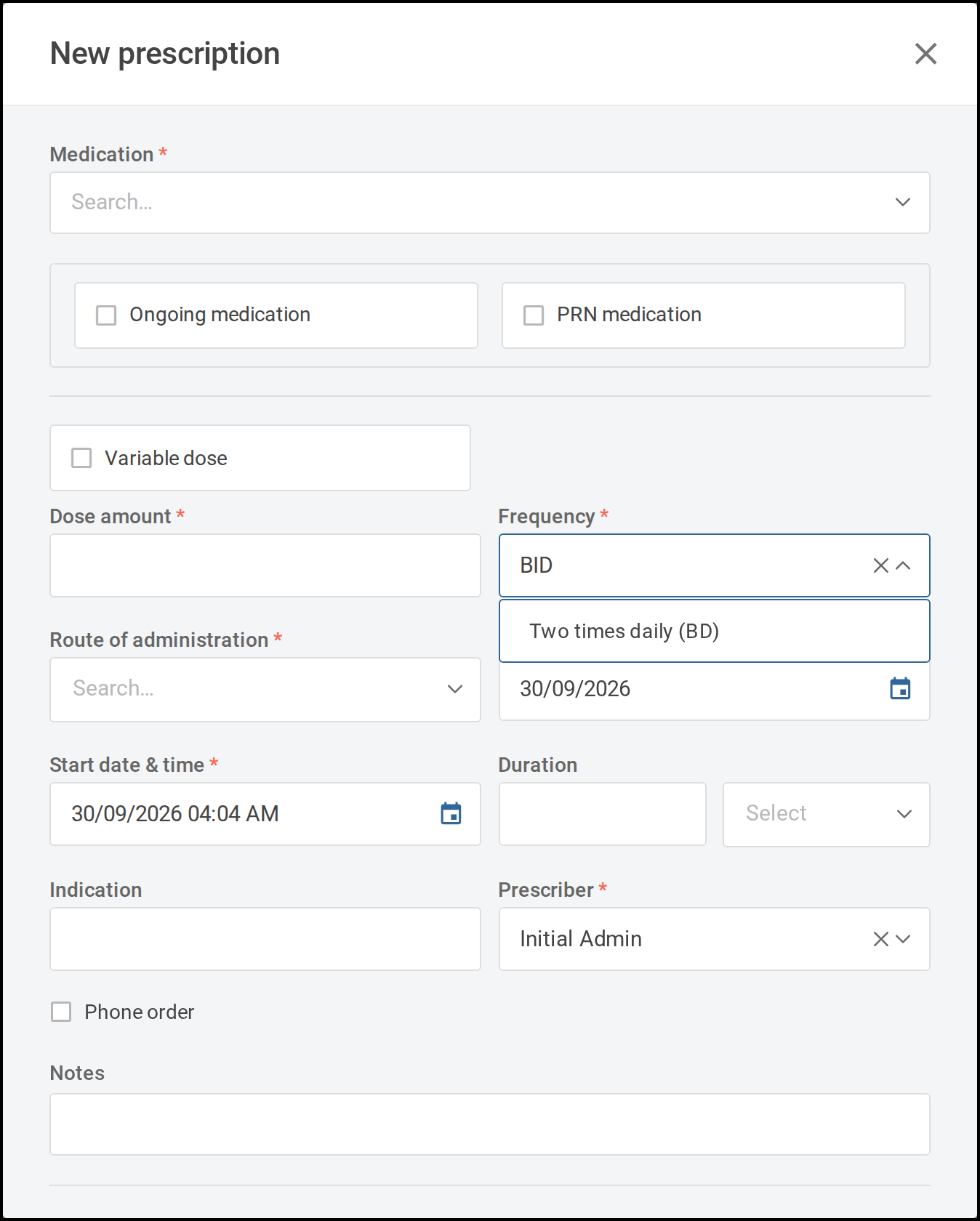
Frequency selection supports searching by synonym. For example Daily at night is also searchable by
nocte and nightly. When searching by a synonym the primary frequency is returned with its first
synonym shown in brackets, so the meaning stays clear while supporting the medical abbreviations still
in common use.
| Frequency | Synonyms |
|---|---|
| Daily in the morning | mane, Morning |
| Daily at midday | midday |
| Daily at night | nocte, nightly |
| Daily | D, Every 24 hours, q24h, q1d, Q.D., QD |
| Two times daily | BD, Every 12 hours, q12h, BID, B.D., Twice a day |
| Three times daily | TID, TDS, T.I.D. |
| Four times daily | QID, QDS, Q.I.D. |
| Every 4 hours | q4h, 4h, 4 hourly, 4 hrly |
| Every 6 hours | q6h, 6h, 6 hourly, 6 hrly |
| Every 8 hours | q8h, 8h, 8 hourly, 8 hrly |
| Hourly | Each hour, Q1h, 1/24, Every hour, Every 60 mins, Every one hour |
| Half-hourly | Each half-hour, Q30m, 30/60, Every half hour, Every 30 mins, Every thirty mins |
| Every second day | QOD, Q.O.D., Every other day |
| Once a week | Weekly, Once weekly |
| Once a month | Monthly, Q.M., QM, Once monthly |
| Immediately | STAT |
| As directed | MDU, As directed by doctor, M.D.U., As directed by prescriber, Variable dose, When required |
| Twice daily - AM and midday | AM and midday, BD - AM and midday, AM and lunch, BD - AM and lunch |
Reassigning the primary frequency, or the ordering of synonyms, requires a change to the Tamanu code.
Individual frequency options can be disabled where they are not required for a deployment. See Frequencies.