Medications
Updated
The settings that govern prescribing, administration and dispensing in the Tamanu Medications Module, and the automated behaviour they drive. Settings are managed in the Settings admin panel.
For the reference data these settings act on see Reference data, and for the permissions required see Permissions.
Settings
Settings are managed in the Settings admin panel.
Pharmacy order settings, including the default prescription type sent when a user selects 'send to pharmacy', are covered in the Dispensing configuration guides.
Frequencies
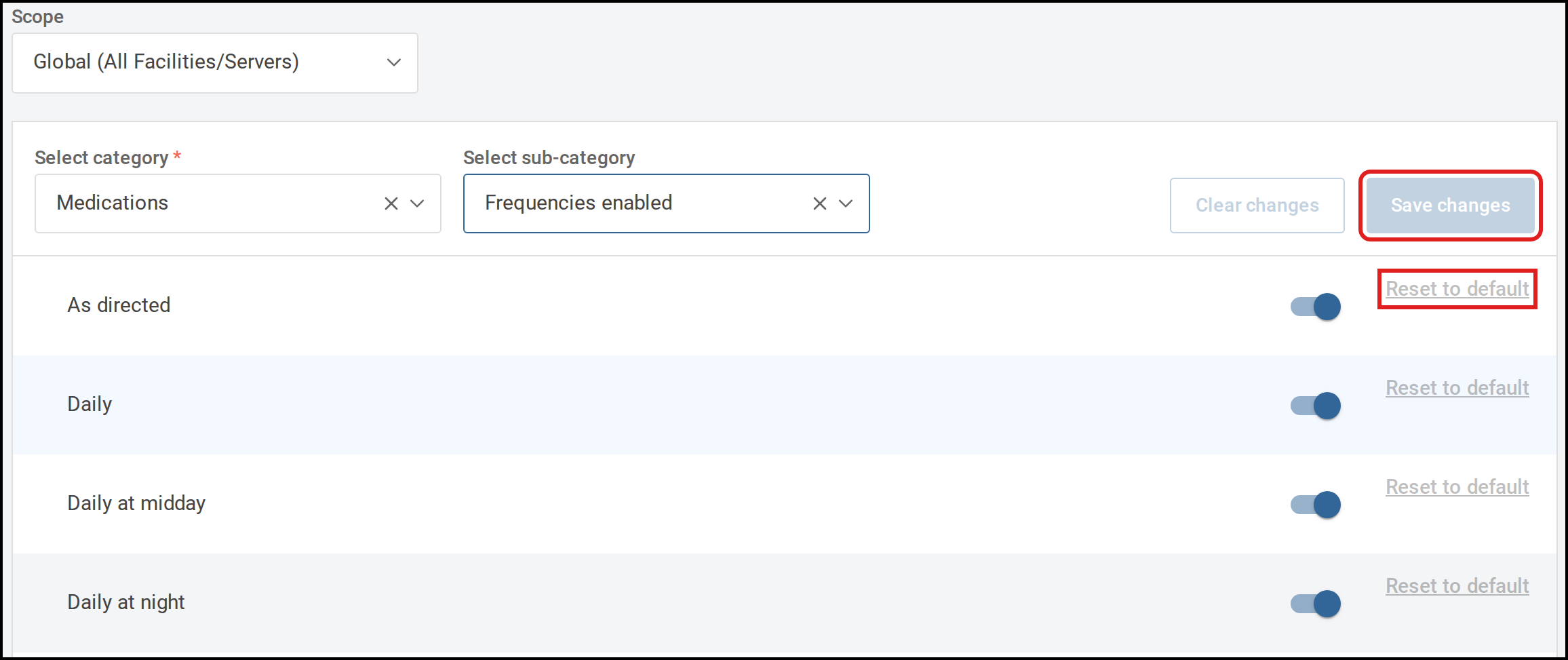
All hard coded frequencies are available by default. A frequency option can be disabled where it is not relevant to your deployment. Updates apply to all facilities in the deployment.
| Field | Value |
|---|---|
| Scope | Global (All Facilities/Servers) |
| Category | Medications |
| Sub-category | Frequencies enabled |
| Setting | Toggle the required frequency off to disable it |
| Default | All frequencies enabled |
Default administration schedule
For each frequency, the default administration schedule and ideal administration time can be changed.
| Field | Value |
|---|---|
| Scope | Global (All Facilities/Servers) |
| Category | Medications |
| Sub-category | Default administration times |
| Setting | For each frequency, set the ideal administration times in the JSON editor. The default administration window is determined from the time set, so an ideal time of 09:00 falls in the 08:00 to 10:00 window. |
| Default | The standard administration times for each frequency, as listed under Frequency |
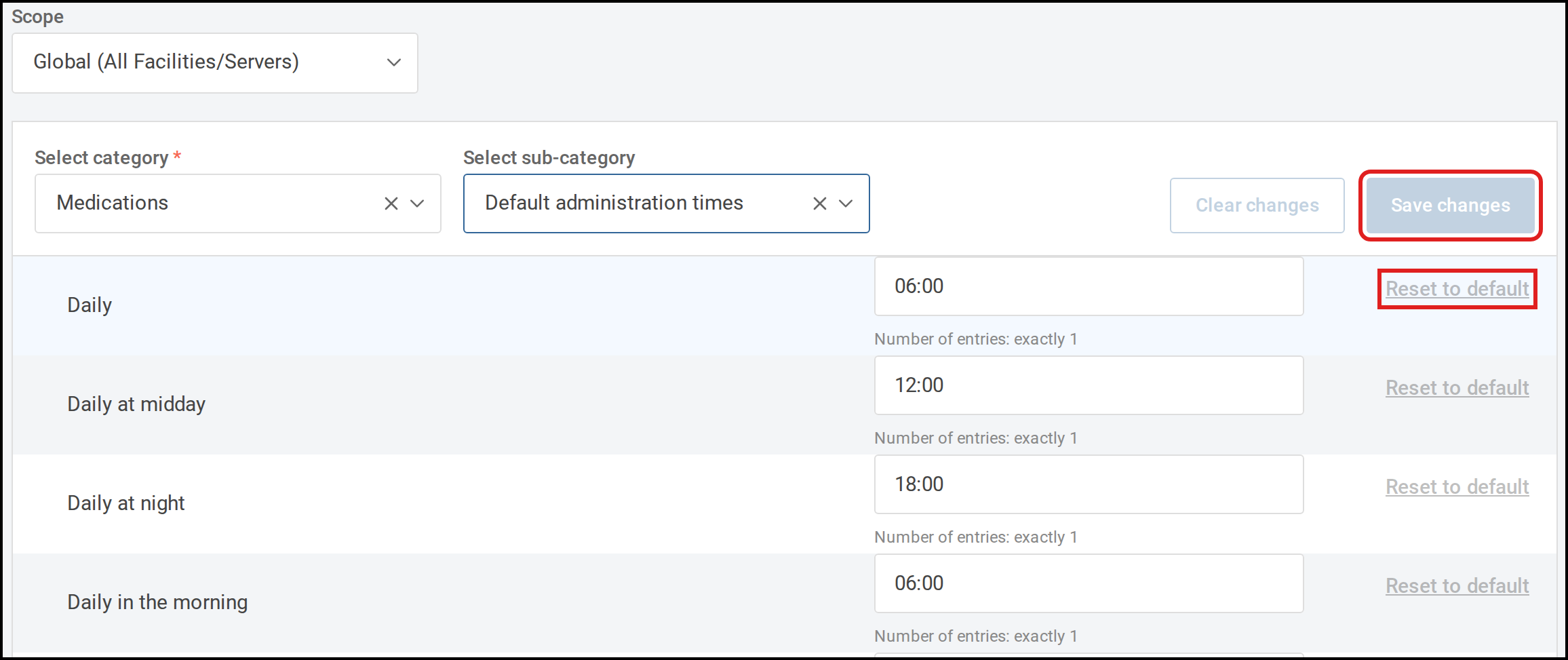
Immediately, As directed, Hourly and Half-hourly are not listed, because their administration
times are either not scheduled or fixed.
Required format:
- Times must be in 24-hour format and written in double quotation marks:
[
  "06:00"
]
- Where a frequency has multiple doses in a day, separate each time with a comma:
[
  "02:00",
  "06:00",
  "10:00",
  "14:00",
  "18:00",
  "22:00"
]
- An error displays if the format is incorrect:
[Screenshot: the error shown for an incorrect JSON format]
- An error displays if the number of administration times does not match the selected frequency:
[Screenshot: the error shown for an incorrect number of administration windows]
Each time must also fall in a different two-hour administration window, so two doses cannot be scheduled in the same window.
Medication administration record
Administration windows
The medication administration record (MAR) maintains a record of all medications administered to a patient during an episode of care. The MAR displays 12 two-hour administration windows covering a 24-hour period. These windows are not configurable.
The schedule displayed on the MAR depends on the selected frequency and administration schedule for the prescribed medication.
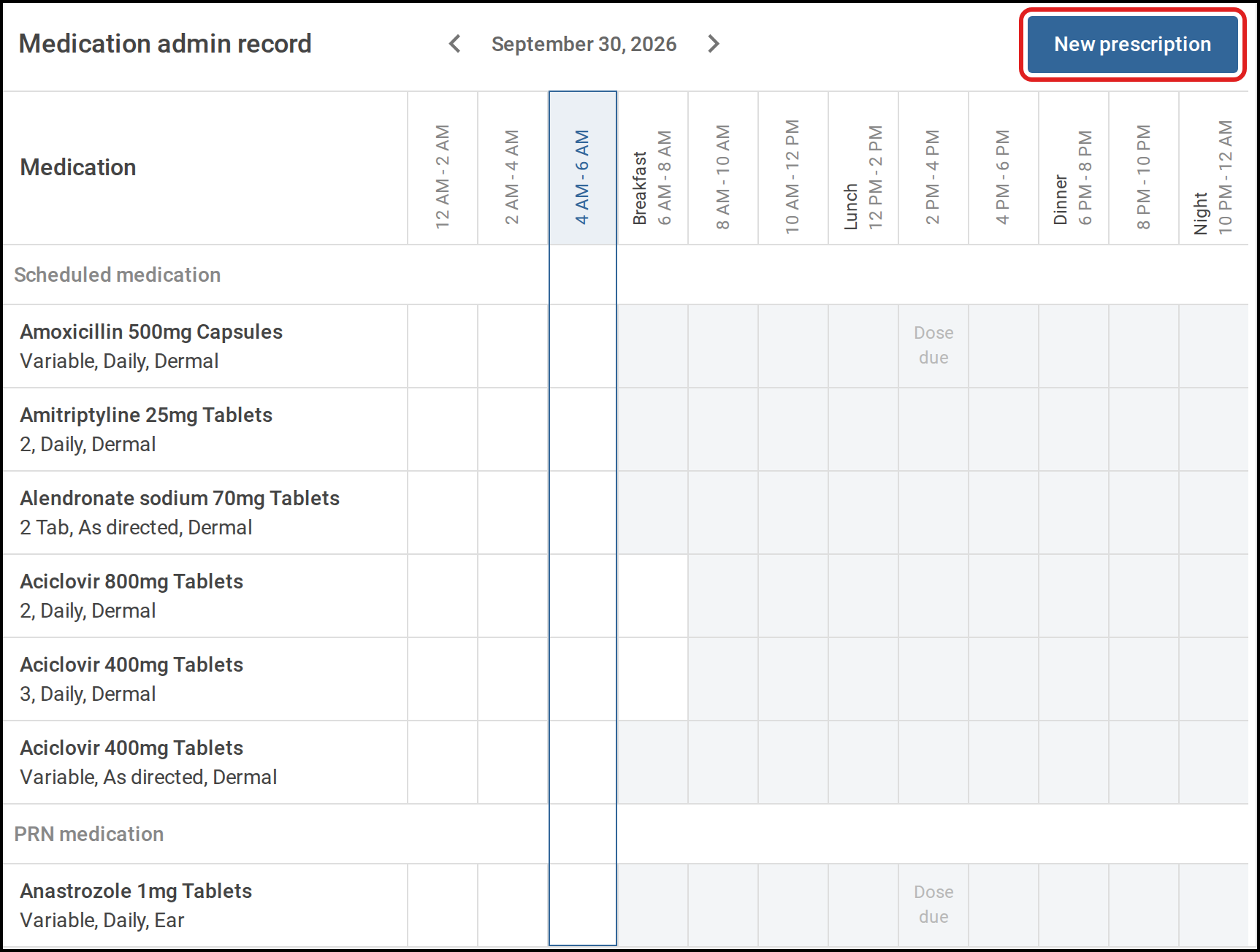
Four windows carry a period label, used where the design shows the time of day rather than the hours: 06:00 to 08:00 is breakfast, 12:00 to 14:00 is lunch, 18:00 to 20:00 is dinner, and 22:00 to midnight is night.
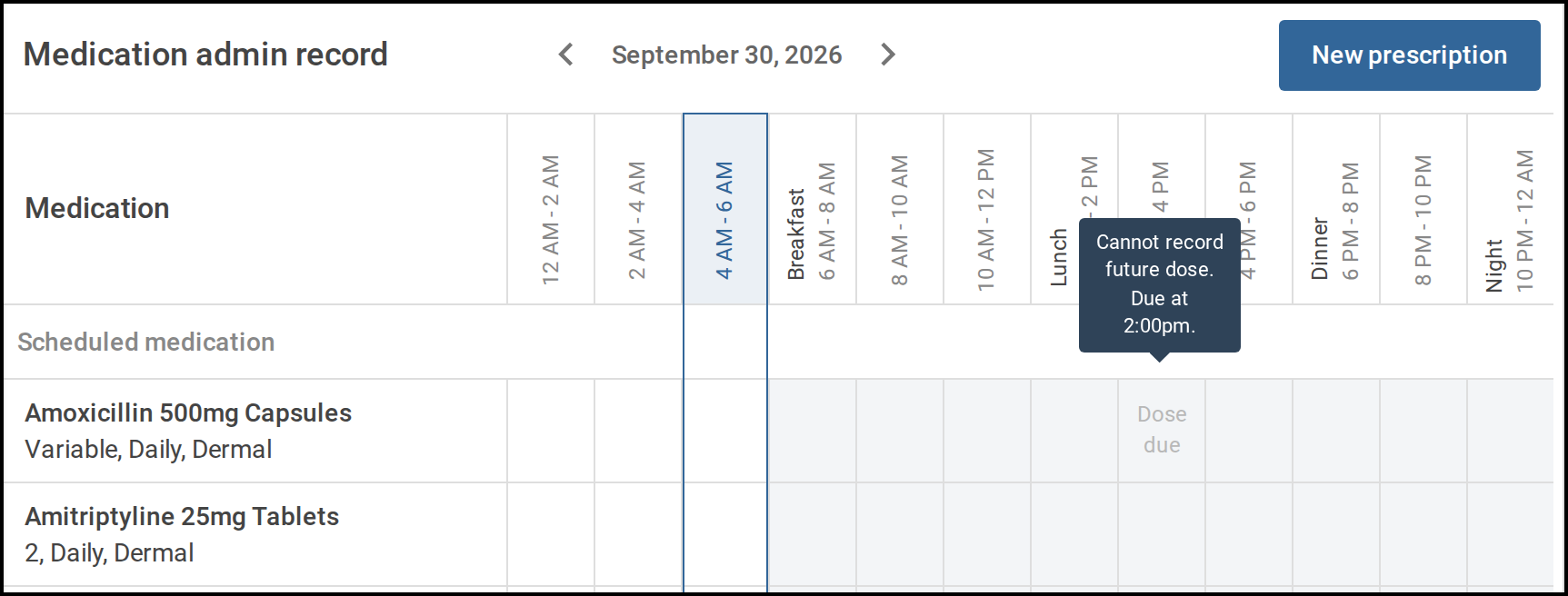
Ideal administration times can be set for each frequency within each administration window. The ideal administration time displays in a tooltip when hovering over a due dose on the MAR.
Administration schedule
The administration schedule is set when prescribing. A default schedule is applied based on the selected frequency and can be edited if required.
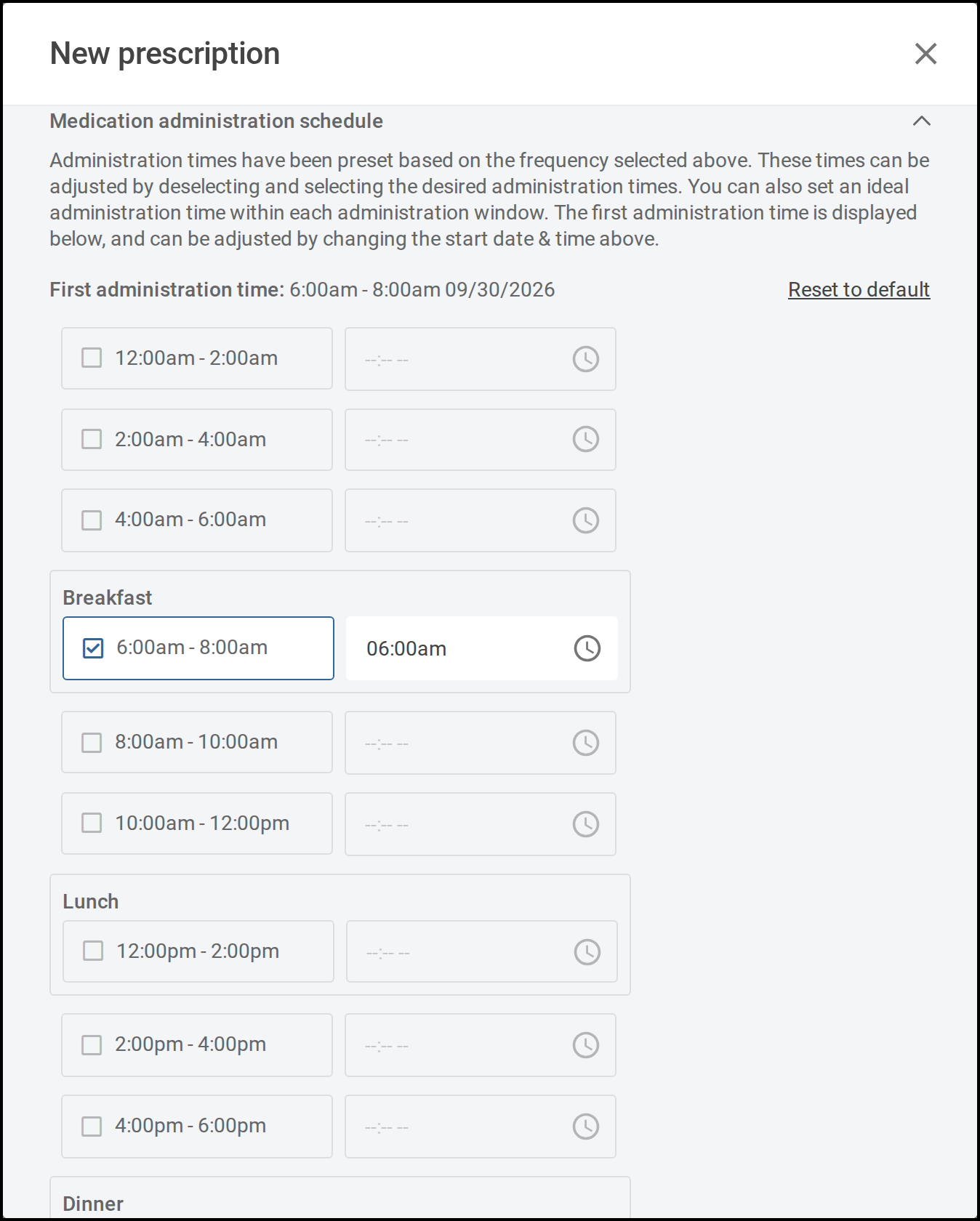
For each frequency, the default schedule and ideal administration time can be changed. See Default administration schedule.
Automated workflows
A number of workflows are automated to support patient safety, clinical accuracy and clinician efficiency, by maintaining a cleaner and more accurate medications list.
Unless specified, these work without configuration.
Dispensing quantity autocalculation
The dispensing quantity can be calculated automatically from the dose, frequency and duration of a prescription, avoiding manual calculation. Automatically calculated quantities can still be edited.
| Field | Value |
|---|---|
| Scope | Global (All Facilities/Servers) |
| Category | Medications |
| Sub-category | Dispensing |
| Setting | Dispensing quantity autocalculation |
| Default | Disabled |
Immediate medications
A prescription with a frequency of Immediately is a one-time order administered without delay due to
the urgency of the circumstances. An example is "Benadryl 50mg orally STAT" for a patient having an
allergic reaction.
As these orders are made without a duration, they are automatically discontinued once a single dose has been recorded, whether Given or Not given, with the following discontinuation details:
- 'Discontinued by' is set to 'System'
- 'Discontinued reason' is set to 'Prescription end date and time reached'
Medication resumed
A paused medication is resumed by the system if it remains paused after the pause duration has passed.
Medication discontinuation
A medication is discontinued automatically if it remains active when its end date and time is reached. The end date and time is calculated from the prescription start date and time and the duration. A prescription without a duration must be discontinued manually when required.
Where a medication has a start date and time and a duration recorded, the end date and time can be viewed in the medication details modal once the prescription is complete.
[Screenshot: the medication details modal displaying the medication end date and time]
Automatically discontinued medications have the following discontinuation details:
- 'Discontinued by' is set to 'System'
- 'Discontinued reason' is set to 'Prescription end date and time reached'
Ongoing medications
For details on ongoing medications logic, see Manage ongoing medications.
Medication due task
To support tracking of medications due for administration, a Medication due task displays in the Upcoming tasks table on the clinician dashboard when a medication is due.
[Screenshot: the medication due task displaying in the upcoming tasks table]
Medication due task setup
To enable the medication due task:
- Enable the tasking feature. See the Tasks configuration guides
- Assign the following permissions to users who should see the task:
listforTaskingreadforTaskinglistforMedicationAdministration
The task does not need to be configured through tasking reference data. It is available automatically when the medications and tasking modules are both in use.
Medication due task criteria
The task displays when all of the following are met:
- The patient has an active inpatient encounter
- The medication is a scheduled medication. PRN medications do not trigger a task
- The medication has a Due time either in the past, from the start of the encounter to the current time, or within an upcoming window that begins when the user lands on the dashboard. That window is 8 hours by default and is set per facility by the tasking upcoming tasks time frame setting, so a deployment that has changed it sees a different window here. See the Tasks configuration guides
Medication due task behaviour
- The task displays on the clinician dashboard only, not on the patient-level task list
- The task Due time displays as the ideal administration time
- The task is removed once the medication is recorded as either Given or Not given
- Where multiple medications are due at the same ideal time for a patient, one task displays for that time. A task covering multiple medications is removed only once all its medications are recorded as given or not given
- Selecting the task from the dashboard opens the MAR
- Where a medication is discontinued, all its tasks falling after the discontinuation time are deleted
- Where an encounter is discharged, all tasks falling after the time of discharge are deleted