How access works in Tamanu, and what every permission grants. Access is role based: each user has one
role, and the role's permissions decide what its users can see and do on desktop, on mobile and in
the admin panel.
For setting up users and roles see Reference data,
and for the settings that decide which permissions apply see Settings.
Permissions
How permissions work
A permission is a verb, the action, applied to a noun, the part of Tamanu it acts on. For
example create for LabRequest lets a role raise lab requests, and list for Patient lets it
see the patient lists. Each noun accepts only some verbs; the reference below lists the verbs each
noun accepts and what each grants. The verbs themselves are listed under
Permission verbs.
Many actions need several permissions together. Opening a patient's allergies, for example, needs
read for Patient as well as list for PatientAllergy. Where a permission depends on another,
the reference says so.
Caution
Permissions granted through the permissions matrix only take effect once
Use hardcoded permissions is turned off. See Permissions source.
Permissions sync to facility servers and mobile devices, so a change reaches staff once their device
has synced.
Granting permissions
Permissions are granted to roles in the permissions matrix, either by importing it as a spreadsheet or
on the Edit tab of the Permissions screen in the admin panel.
Permission verbs
Used in the verb column of the Permission tab. Input the value exactly as shown, in lower case.
Each noun accepts only some verbs, listed under the noun in the Permission reference.
Value
Meaning
list
View a list of records
read
View the details of a record
write
Change an existing record
create
Add a new record
delete
Delete a record
run
Run a report
submit
Submit a form
login
Log in to a facility
sync
Sync, when Restrict users to sync is on. Not shown on the Edit tab of the Permissions screen. See Sync restriction
fhirIntegration
Connect an external system through an integration
Importing the permissions matrix
The permissions matrix is a spreadsheet with two tabs: Role, covered under
Role, and Permission, with one row per permission and one column per
role, marking which roles hold it. Both are imported on the Import tab of the Permissions
screen, and exported from its Export tab.
Field
Value
Tab name
Permission
Where * is a required field.
Column name
Description
verb *
The action permitted, such as read or write. See Permission verbs. This column is not validated on import, so a misspelt verb is accepted and grants nothing.
noun *
The part of Tamanu the action applies to, such as Patient or LabRequest. Must match a noun in the Permission reference exactly, including case, or the row errors with Noun is invalid or does not exist.
objectId
Limits the permission to a single record, for the nouns that support it: a chart, form, report or program registry. Must be the id of an existing record, or the row errors with Invalid objectId. Leave blank to apply the permission to every record. See Permissions for individual records.
After these columns comes one column for each role, headed with the role's id from the Role
tab. Each cell takes:
y: the role is granted the permission
n: the permission is revoked from the role
blank: no change. A blank cell does not revoke a permission the role already holds
Any other value errors. A column headed note is ignored, so it can carry comments on a row.
Roles granted the integration permissions used by external systems cannot also hold ordinary
permissions. An import that would give one role both errors. See
Integrations.
An export writes y for a granted permission and n for a revoked one, and leaves a cell blank where
the role has never held the permission, so an exported matrix re-imports unchanged. A role with no
permissions at all has no column in the export.
Editing permissions in the admin panel
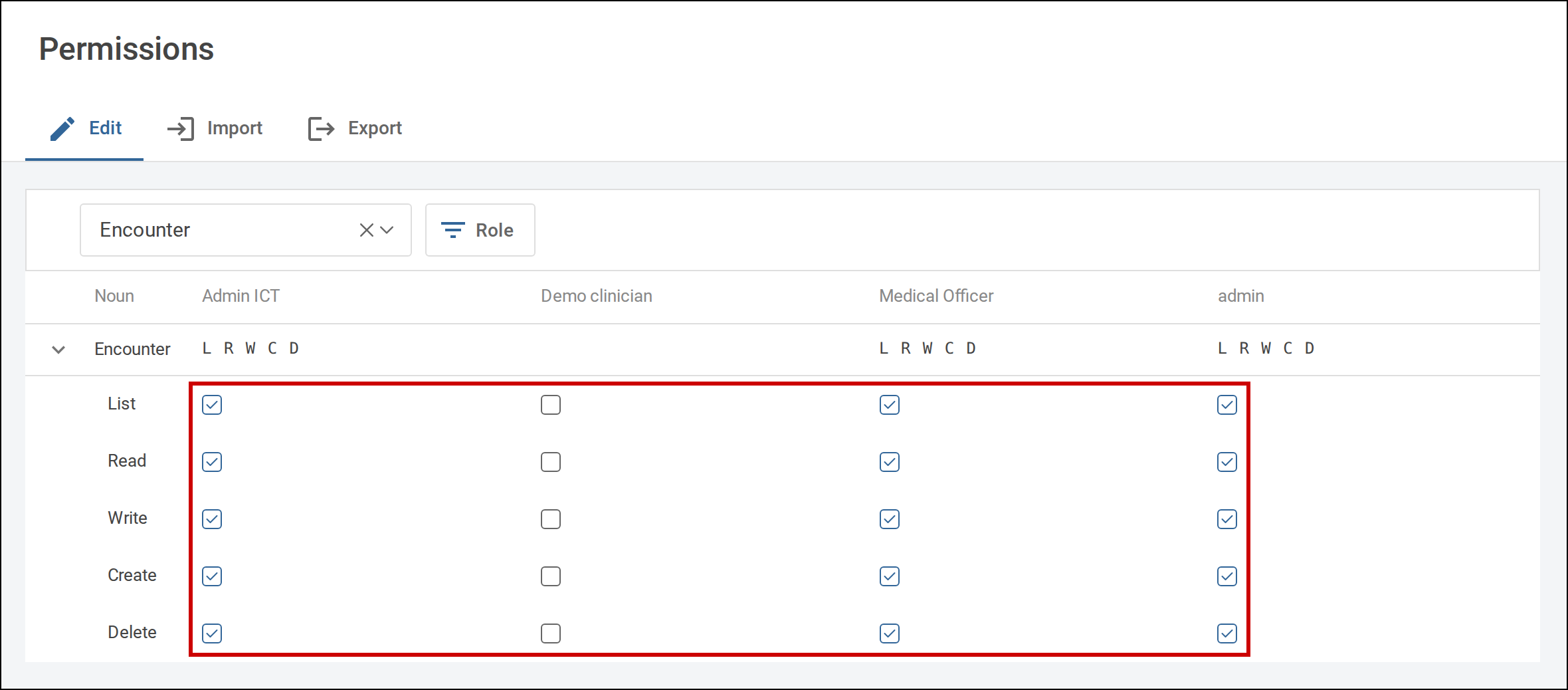
The Edit tab of the Permissions screen shows the matrix and lets permissions be turned on and
off directly. Turning a verb on also turns on the verbs below it, in the order delete, create,
write, read, list: turning on create for Procedure also grants write, read and list.
Turning a verb off turns off only that verb.
Expand a noun to tick or untick each verb for each role.
Viewing the matrix needs read for Permission and list for Role. Turning permissions on needs
create for Permission, and turning them off needs delete. See Permission.
The sync verb, and the nouns used only by integrations behind the scenes, are
not shown on the Edit tab, so they can only be granted through the import.
Permissions for individual records
Four nouns can be granted for a single record rather than all of them, by entering the record's id in
the objectId column of the matrix:
Noun
Record
Verbs that can be limited
Charting
A chart
list, read, write, create, delete
Survey
A form or referral
read, write, submit
ReportDefinition
A report
read, write, run
ProgramRegistry
A program registry
read, write
How each record's id is formed is set out under its noun below. The id must match an existing record
exactly, or the import errors with Invalid objectId.
Warning
A permission with no objectId applies to every record of that noun, and per-record permissions
cannot narrow it. To restrict a role to some forms, charts, reports or registries, grant only the
per-record permissions and leave out the general one.
A per-record permission also satisfies checks that are made against the noun as a whole. For example,
read for a single report opens the whole Reports screen in the admin panel, and write for a
single form, with create, lets a role import any program's forms. Where this happens it is noted
under the noun.
The admin role
The role with the id admin is built in. Users with this role can do everything in Tamanu whatever
the matrix says, so editing the admin role's permissions has no effect. They are the users who can
change the settings marked high risk and set up a new facility server. They can also log in to every
facility, including sensitive ones, and are never restricted from syncing. See
Facility access.
Impersonating a role
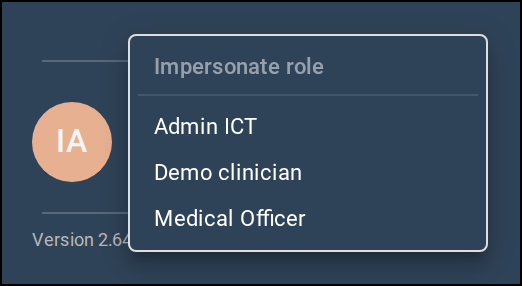
A user with the admin role can see Tamanu desktop as another role would, to check a role's
permissions. Hold Ctrl (Cmd on a Mac) and select the user's avatar at the foot of the sidebar to open
Impersonate role, choose a role, and select Stop impersonating to return. Impersonation works
on desktop only.
The Impersonate role list.
Admin panel access
Any user who can log in can reach the admin panel; no permission is needed to open it, and facility
access does not apply. Each screen then checks its own permissions, and shows a permission message or
refuses the action where the role lacks them. Every item in the admin panel sidebar is shown to every
user, whatever their permissions.
Importing and exporting on the Reference data screen needs, for each data type selected:
To import, create and write for the type's noun
To export, list for the type's noun
Every type is selected by default, so a role that cannot import or export some types must deselect
them first. Types held in the general reference data list, such as Village, Allergy, Drug and
Designation, all use ReferenceData. Every other type uses its own noun, named after the type, such
as Facility, Location or User.
The Manage tab needs list for the type's noun to view records, create to add one and write
to edit one.
Permissions and what staff see
Some buttons and menu items show to every user, and the action is refused only when it is saved.
The facility sidebar's Labs, Imaging and Scheduling items, for example, show to every user,
and the screen shows a permission message. Where a button shows without the permission it needs, the
reference says so.
Mobile checks fewer permissions than desktop. Where a permission is checked on mobile, the reference
says so.
Permission reference
Nouns are grouped by the part of Tamanu they relate to. Where a verb is accepted for a noun but
granting it changes nothing for staff, it is listed as Not currently checked or Has no effect on
any current screen.
Users and access
User
User accounts, managed under Users > User profiles in the admin panel.
Verb
What it grants
list
Open User profiles in the admin panel and see the list of users (without it the screen shows a permission message)
Choose clinicians in clinician fields across desktop
Export the user sheet in the admin panel
read
Show another user's name on desktop printouts, such as the prescriber on a prescription and the submitter on a printed form
See another user's upcoming leave on their profile in the admin panel
write
Change any user's profile in the admin panel, including changing their password, deactivating them (the Status field) and their Allowed facilities
Add and remove scheduled leave with Schedule leave and Remove
Import the user sheet in the admin panel (with create)
create
Add a user with Add user in the admin panel
Import the user sheet in the admin panel (with write)
Every user can always see and update their own account, whatever their role; this does not let them edit their own profile in the admin panel. Add user and the profile also need list for Role, ReferenceData (designations) and Facility to fill their dropdowns. Sync accounts cannot be edited.
UserDesignation
The link between users and their designations.
Verb
What it grants
list
Not currently checked
read
Not currently checked
write
Not currently checked
create
Not currently checked
Designations themselves are governed by ReferenceData, and assigning them to a user by User.
Role
The roles users are assigned to.
Verb
What it grants
list
See the Roles tab under Users > Roles & designations in the admin panel
See role columns and the Role filter in the Permissions matrix
Choose a role on Add user and on a user profile
Export the permissions spreadsheet (with list for Permission)
read
See the role in the Delete role dialog in the admin panel
write
Import the permissions spreadsheet (with create, and create and write for Permission)
create
Add a role with Add role in the admin panel
Import the permissions spreadsheet (as above)
delete
Delete a role in the admin panel, blocked while any user account (including deactivated ones) is assigned to it
Permission
The permissions held by each role, managed on the Permissions screen in the admin panel.
Verb
What it grants
list
Export the permissions spreadsheet from the Export tab (with list for Role)
read
See the permissions matrix on the Edit tab (without it the tab shows a permission message)
Also requires list for Role to see any role columns
write
Import the permissions spreadsheet from the Import tab (with create, and create and write for Role)
create
Turn a permission on in the matrix
Import the permissions spreadsheet (with write, as above)
delete
Turn a permission off in the matrix
Turning a verb on in the matrix also turns on the verbs below it in the order delete, create, write, read, list. Turning a verb off does not turn anything else off.
Facility
The facilities in the deployment, and who may log in to them.
Verb
What it grants
list
Choose a facility in facility fields across desktop and the admin panel, such as Allowed facilities on a user profile and the facility selector on Location assignment and Asset upload
Choose a facility in the Settings editor in the admin panel
Export the facility sheet, and see facilities on the Reference data > Manage tab, in the admin panel
read
See the current facility's name in the sidebar footer on desktop (without it the footer reads Central admin server)
Show facility details on printouts such as prescriptions, vaccine certificates, birth notifications and form responses, and on Bed management and medication dispensing screens
write
Edit a facility on the Manage tab in the admin panel
Import the facility sheet in the admin panel (with create)
create
Add a facility on the Manage tab in the admin panel
Import the facility sheet in the admin panel (with write)
login
When the Restrict users to facilities setting is on, log in to every facility that is not in a sensitive network, on desktop and on mobile
Has no effect while that setting is off, because everyone can then log in to every non-sensitive facility
Never grants a sensitive facility: those always have to be listed in the user's Allowed facilities
Administration
Setting
The deployment's settings, edited on the Settings screen in the admin panel.
Verb
What it grants
list
Not currently checked
read
See settings in the Editor tab of the Settings screen
Choose an AI model in the AI model fields of the editor
write
Save changes to settings
See the JSON editor tab
Changing high-risk settings and secret settings also needs the admin role
Choosing a facility on the Settings screen also requires list for Facility.
Asset
Images uploaded on the Asset upload screen in the admin panel, such as letterhead logos and certificate footers.
Verb
What it grants
list
Not currently checked
read
Not currently checked
write
Replace an asset that has already been uploaded (for the same facility, or for all facilities) in the admin panel
create
Upload an asset that has not been uploaded before in the admin panel
Choosing a facility on the Asset upload screen also requires list for Facility.
Template
Patient letter templates and clinical note templates, managed on the Templates screen in the admin panel.
Verb
What it grants
list
See the Templates screen in the admin panel
Choose a template when writing a patient letter or a note on desktop
read
Fill a patient letter or note from the chosen template on desktop
write
Edit a template, or remove it with Delete template, in the admin panel (with read and list)
create
Add a template in the admin panel (with list)
PatientLetterTemplate
An old noun for patient letter templates, replaced by Template.
Verb
What it grants
list
Not currently checked
read
Not currently checked
write
Not currently checked
Translation
Editing translated text on the Translation screen in the admin panel.
Verb
What it grants
write
Save changes on the Edit tab of the Translation screen
Viewing the translations needs no permission. Importing and exporting translations is governed by TranslatedString.
TranslatedString
The translated text itself, imported and exported on the Translation screen in the admin panel.
Verb
What it grants
list
Export translations from the Export tab of the Translation screen
read
Not currently checked
write
Import translations from the Import tab (with create)
create
Import translations from the Import tab (with write)
FormBuilder
The AI form builder in the admin panel.
Verb
What it grants
write
Use the AI form builder tab under Programs > Programs & forms in the admin panel to draft a form by chat
Also requires AI to be set up for the deployment
Saving the drafted form into a program also requires create and write for Survey.
SensitiveNetwork
Sensitive networks, which group facilities whose data is kept apart and whose access must be granted user by user.
Verb
What it grants
list
Export the sensitive network sheet, and see networks on the Reference data > Manage tab, in the admin panel
read
Not currently checked
write
Edit a network on the Manage tab in the admin panel
Import the sheet in the admin panel (with create)
create
Add a network on the Manage tab in the admin panel
Import the sheet in the admin panel (with write)
SyncPatient
Marking a patient for sync, so their full record is kept on this facility or device.
Verb
What it grants
create
See Sync patient records on a patient whose record is not yet synced to this facility, on desktop (also requires read for Patient)
Without it, desktop shows a message to contact the system administrator instead
Mark a patient for sync from the sync icon on the patient's screen, on mobile
Kiosk
The patient self check-in kiosk.
Verb
What it grants
run
See Self check-in kiosk under Facility admin in the desktop sidebar (only shown when the kiosk is turned on in settings)
Run the kiosk on the account signed in to the tablet, so patients can find their appointment and check in
Without it the kiosk shows Self check-in is unavailable
The kiosk account needs no other permission to run it.
Signer
The keys used to sign vaccine certificates.
Verb
What it grants
list
Not currently checked
read
Not currently checked
Reference data and locations
ReferenceData
Values held in the general reference data list, such as allergies, villages, drugs, diagnoses and designations.
Verb
What it grants
list
Choose values in reference data fields across desktop, such as allergy, village, diagnosis, drug and task fields
See the Designations tab under Users > Roles & designations, and choose designations on a user profile, in the admin panel
Export reference data sheets, and see these types on the Reference data > Manage tab, in the admin panel
read
Show reference data details on desktop, such as the patient's village on printed lab requests, prescriptions, encounter records and certificates, and the encounter's billing type
See a designation in the Delete designation dialog in the admin panel
write
Edit a value on the Manage tab in the admin panel
Import reference data sheets in the admin panel (with create)
create
Add a new value straight from a field on desktop where the field allows it, such as allergies and task reasons
Add a value on the Manage tab, and add a designation with Add designation, in the admin panel
Import reference data sheets in the admin panel (with write)
delete
Delete a designation in the admin panel, blocked while any user or task is assigned to it
No other reference data can be deleted
ReferenceDataRelation
Links between reference data records, such as the address hierarchy (village to subdivision) and facility catchments.
Verb
What it grants
list
Export the relation sheet, and see relations on the Reference data > Manage tab, in the admin panel
read
Not currently checked
write
Edit a relation, or remove one with Delete, on the Manage tab in the admin panel
Import the relation sheet in the admin panel (with create)
create
Add a relation on the Manage tab in the admin panel
Import the relation sheet in the admin panel (with write)
Choosing the linked records on the Manage tab also requires list for ReferenceData.
Department
Departments within each facility.
Verb
What it grants
list
Choose a department in department fields across desktop, such as when starting an encounter, requesting labs or imaging, or recording a procedure or vaccine
Choose a department in the Settings editor in the admin panel
Export the department sheet, and see departments on the Reference data > Manage tab, in the admin panel
read
Has no effect on any current screen
write
Edit a department on the Manage tab in the admin panel
Import the department sheet in the admin panel (with create)
create
Add a department on the Manage tab in the admin panel
Import the department sheet in the admin panel (with write)
LocationGroup
Areas (such as wards or clinics) within a facility, which group locations.
Verb
What it grants
list
Choose an area in area fields and filters across desktop, such as Bed management, the emergency, lab, imaging and medication lists, patient search and appointment booking
Export the location group sheet, and see areas on the Reference data > Manage tab, in the admin panel
read
Open handover notes from Bed management on desktop (with the other permissions listed under Location)
write
Edit an area on the Manage tab in the admin panel
Import the location group sheet in the admin panel (with create)
create
Add an area on the Manage tab in the admin panel
Import the location group sheet in the admin panel (with write)
The area list on the outpatient appointments calendar is controlled by list for Location, not LocationGroup.
Location
Locations (such as beds or rooms) within an area of a facility.
Verb
What it grants
list
Choose a location in location fields across desktop, such as moving a patient or booking a location
See the Location bookings calendar and the area list on the outpatient appointments calendar on desktop
Choose a location in the Settings editor and on the Location assignment screen in the admin panel
Export the location sheet, and see locations on the Reference data > Manage tab, in the admin panel
read
Open handover notes from Bed management on desktop (with read for LocationGroup, Encounter and EncounterNote, and list for Patient)
write
Edit a location on the Manage tab in the admin panel
Import the location sheet in the admin panel (with create)
create
Add a location on the Manage tab in the admin panel
Import the location sheet in the admin panel (with write)
Moving a patient is governed by write for Encounter, not by write for Location.
LocationAssignment
The clinicians assigned to each location, as scheduled in the admin panel.
Verb
What it grants
list
See which clinicians are assigned to each location in the day view of Location bookings on desktop (either list or read is enough)
read
Same as list
To create and change assignments, see LocationSchedule.
LocationSchedule
Scheduling clinicians to locations on the Location assignment screen in the admin panel.
Verb
What it grants
list
Open Users > Location assignment in the admin panel and see the assignment calendar (without it the screen shows a permission message)
read
Select an assignment on the calendar to see its details
write
Change an assignment with the Edit action in the assignment panel
create
Assign a user to a location with Assign user
delete
Remove an assignment with Delete in the assignment panel
PatientFieldDefinitionCategory
Categories that group custom patient fields.
Verb
What it grants
list
Choose a category when adding or editing a patient field definition on the Manage tab in the admin panel
Export the sheet, and see categories on the Manage tab, in the admin panel
read
Not currently checked
write
Edit a category on the Manage tab in the admin panel
Import the sheet in the admin panel (with create)
create
Add a category on the Manage tab in the admin panel
Import the sheet in the admin panel (with write)
PatientFieldDefinition
Custom patient fields that a deployment adds to patient details.
Verb
What it grants
list
Export the patient field definition sheet, and see definitions on the Reference data > Manage tab, in the admin panel
read
Not currently checked
write
Edit a definition on the Manage tab in the admin panel
Import the sheet in the admin panel (with create)
create
Add a definition on the Manage tab in the admin panel
Import the sheet in the admin panel (with write)
Choosing a category on the Manage tab also requires list for PatientFieldDefinitionCategory. Seeing and filling in the fields on desktop is governed by Patient.
ScheduledVaccine
The vaccine schedule: which vaccines are due, and when.
Verb
What it grants
list
Export the scheduled vaccine sheet, and see scheduled vaccines on the Reference data > Manage tab, in the admin panel
read
Not currently checked
write
Edit a scheduled vaccine on the Manage tab in the admin panel
Import the sheet in the admin panel (with create)
create
Add a scheduled vaccine on the Manage tab in the admin panel
Import the sheet in the admin panel (with write)
Choosing the vaccine on the Manage tab also requires list for ReferenceData. Seeing a patient's vaccine schedule on desktop is governed by PatientVaccine.
CertifiableVaccine
The certifiable vaccine reference data, which says which vaccines can appear on vaccine certificates.
Verb
What it grants
list
Export the certifiable vaccine sheet in the admin panel
See certifiable vaccines on the Reference data > Manage tab in the admin panel
read
Not currently checked
write
Edit a certifiable vaccine on the Manage tab in the admin panel
Import the certifiable vaccine sheet in the admin panel (with create)
create
Add a certifiable vaccine on the Manage tab in the admin panel
Import the certifiable vaccine sheet in the admin panel (with write)
Choosing the vaccine on the Manage tab also requires list for ReferenceData.
ImagingAreaExternalCode
Codes that map imaging areas to an external imaging system.
Verb
What it grants
list
Export the imaging area external code sheet, and see the codes on the Reference data > Manage tab, in the admin panel
read
Not currently checked
write
Edit a code on the Manage tab in the admin panel
Import the sheet in the admin panel (with create)
create
Add a code on the Manage tab in the admin panel
Import the sheet in the admin panel (with write)
ImagingTypeExternalCode
Codes that map imaging types to an external imaging system.
Verb
What it grants
list
Export the imaging type external code sheet, and see the codes on the Reference data > Manage tab, in the admin panel
read
Not currently checked
write
Edit a code on the Manage tab in the admin panel
Import the sheet in the admin panel (with create)
create
Add a code on the Manage tab in the admin panel
Import the sheet in the admin panel (with write)
Reports
ReportDefinition
Database-defined reports: generating them on desktop, and managing them on the Reports screen in the admin panel.
Verb
What it grants
list
Choose reports in report fields of the Settings editor in the admin panel, such as the DHIS2 Reports setting
read
Open the Reports screen in the admin panel, see reports and their versions, and export a version (with read for ReportDefinitionVersion)
write
Not currently checked
create
Create a report on the Create tab, save a new version from the editor, and import a report on the Import tab (with create for ReportDefinitionVersion)
run
See a report in the report list under Facility admin > Reports on desktop, and generate or email it
The Generic Survey Export - Line List report also needs read for Survey on the chosen form
The objectId for ReportDefinition is the report's ID: the ID created when the report is first created or imported (shown as Report id after an import), or a fixed ID for built-in reports such as generic-survey-export-line-list. IDs created in the admin panel differ between deployments. The Permissions matrix lists one row per report, by name. A run permission with no objectId lets the role run every report, and makes per-report run rows irrelevant. A per-report run lets the role run only that report. The admin Reports screen checks report access as a whole, so a per-report read row opens it for every report, and a per-report write row does nothing.
ReportDefinitionVersion
The versions of each database-defined report.
Verb
What it grants
list
Not currently checked
read
Needed alongside read for ReportDefinition to use the Reports screen in the admin panel
write
Not currently checked
create
Needed alongside create for ReportDefinition to create, save or import reports in the admin panel
ReportDbSchema
Access to reports that query the raw database instead of the reporting schema.
Verb
What it grants
write
See raw-database reports on the Reports screen in the admin panel (when the reporting schema is in use, other users only see reporting-schema reports)
See and change the DB Schema field when creating or editing a report
Import a report that uses the raw database
ReportRequest
Requests to generate a report and email it.
Verb
What it grants
list
Not currently checked
read
Not currently checked
write
Not currently checked
create
Not currently checked
Emailing a report is governed by run for ReportDefinition.
Patients
Patient
A patient record, and access to the patient screens built on it.
Verb
What it grants
list
See and search the patient lists, including All patients and recently discharged patients
See Recently viewed patients
Search for a patient in any patient picker field
Use bed management, ward occupancy and readmission statistics, and handover notes (handover notes also need read for Location and LocationGroup)
read
Open a patient and see their details, including birth details, additional details, insurance plans and custom patient fields
Needed for almost every patient-level list: ongoing conditions, allergies, family history, other issues, care plans, forms, referrals, program registrations and secondary IDs
See the Reminder contacts button (also on mobile)
Mark a patient for sync to this facility (with create for SyncPatient)
In the admin panel, look up patients to merge on the Patient merge screen
write
Save changes on the patient Details tab, including birth details. Changing the display ID also saves the old ID as a secondary ID
Add and remove reminder contacts with Add contact and Remove (also on mobile)
Record or revert a death (with create for PatientDeath)
In the admin panel, merge two patients on the Patient merge screen
create
Use Add new patient, including recording birth details for a birth registration
The Details tab opens if the role has any of read, write or create; without write the changes cannot be saved.
PatientAllergy
An allergy recorded against a patient.
Verb
What it grants
list
See the Allergies section in the patient sidebar
read
Needed alongside write to save changes to an existing allergy
write
Edit an existing allergy
create
Add an allergy
Also requires read for Patient. Not checked on mobile.
PatientCondition
An ongoing condition recorded against a patient.
Verb
What it grants
list
See the Ongoing conditions section in the patient sidebar
read
Needed alongside write to save changes to an existing condition
write
Edit an existing condition, including marking it resolved
create
Add an ongoing condition
delete
Delete an ongoing condition
Also requires read for Patient. Not checked on mobile.
PatientFamilyHistory
A family history condition recorded against a patient.
Verb
What it grants
list
See the Family history section in the patient sidebar
read
Needed alongside write to save changes to an existing family history item
write
Edit an existing family history item
create
Add a family history item
Also requires read for Patient. Not checked on mobile.
PatientIssue
An issue or warning recorded against a patient, other than an ongoing condition.
Verb
What it grants
list
See the Other patient issues section in the patient sidebar
read
Needed alongside write to save changes to an existing issue
write
Edit an existing patient issue
create
Add a patient issue
Also requires read for Patient. Not checked on mobile.
PatientCarePlan
A care plan recorded against a patient, and its notes.
Verb
What it grants
list
See the Care plans section in the patient sidebar
read
Open a care plan and see its notes
write
Edit or Delete a note on a care plan
create
Add a care plan (Add care plan)
Add note to an existing care plan
Also requires read for Patient. Not checked on mobile.
PatientBirthData
A patient's birth details (birth registry fields).
Verb
What it grants
read
Not currently checked
write
Not currently checked
Birth details are seen with read for Patient, saved with write for Patient, and created with create for Patient.
PatientDeath
Recording a patient's death.
Verb
What it grants
read
See the death details on a deceased patient's summary and open the Death certificate
See Revert death record for a deceased patient (with create)
create
Record death, and complete the Cause of death details
Revert death record while the death record is not final
Also requires write for Patient to record or revert a death, and the Record death actions only show when the patient deaths feature is enabled.
PatientDeathData
The recorded details of a patient's death.
Verb
What it grants
read
Not currently checked
write
Not currently checked
Death details are viewed with read for PatientDeath.
PatientSecondaryId
A patient's secondary identifiers, such as a previous display ID.
Verb
What it grants
list
Not currently checked
read
Has no effect on any current screen
write
Has no effect on any current screen
create
Has no effect on any current screen
Secondary IDs are created automatically, under write for Patient, when a patient's display ID is changed.
PatientSummary
The AI-generated patient summary.
Verb
What it grants
read
See the AI patient summary panel in the patient sidebar (with write)
write
See the AI patient summary panel (with read)
Edit and Save the summary, or Discard it
create
Generate the summary, including Regenerate AI summary and the automatic generation when a summary is missing or out of date
The panel only shows when the patient summary setting is enabled and the patient is marked for sync to this facility.
PatientPortalRegistration
Registering a patient for the patient portal.
Verb
What it grants
read
Has no effect on any current screen
create
Use Patient portal registration under Patient resources to email the patient a registration link
Send a portal form to a patient who has no portal account yet
These only show when the patient portal feature is enabled.
PatientPortalForm
Forms sent to a patient through the patient portal.
Verb
What it grants
list
See the Outstanding patient program forms table on the patient Forms tab
read
Not currently checked
create
Send to patient portal when choosing a form
Also needs create for PatientPortalRegistration if the patient has no portal account yet
delete
Delete an outstanding portal form
These only show when the patient portal feature is enabled. Choosing a form also needs the Program and Survey permissions for that form.
Programs, forms and registries
Program
A program, which groups forms (surveys) and referrals.
Verb
What it grants
list
See the program list when starting a New form. Only programs with at least one form the role can submit are listed
In the admin panel, see programs on the Programs & forms screen and export a program from the Export tab
read
Load a program's forms when starting a New form
In the admin panel, open a program on the Manage tab
write
In the admin panel, Edit program metadata
Import programs from the Import tab (with create)
create
Import programs from the Import tab (with write). This also imports any program registry, statuses and conditions in the file
Survey
A form (survey), including program forms and referral forms.
Verb
What it grants
list
See the list of forms to choose from when starting a New form, a referral or a procedure form
Choose a form in report parameters
In the admin panel, see a program's forms on the Manage tab
read
Open a form to fill it in
See a form's submitted responses in the patient and encounter Forms tabs and the Referrals tab, and open, print or view the Change log of a response
On mobile, see a form's past responses and referrals
Run the Generic Survey Export - Line List report for that form
write
Edit a submitted program form response (with read for SurveyResponse)
In the admin panel, Edit form metadata, Make historical or Make current
Import forms from the Import tab or save forms from the AI form builder (with create)
create
Import forms from the Import tab or save forms from the AI form builder (with write)
submit
Have the form offered in the list when starting a New form, a referral or a procedure form, on desktop and mobile
To fill in a form on desktop a role needs list and read for Program, list for Survey, read and submit for that form, and create for SurveyResponse. Mobile checks only submit.
The objectId is the form's id: program-, the program code, a hyphen, then the form code. Both codes come from the program import file's Metadata sheet, and both are lower-cased with every character other than letters, digits and underscores removed, so program code DER-Assessment and form code Refraction give program-derassessment-refraction. A form saved from the AI form builder follows the same pattern, with a number added to the form code if it is already taken. read, write and submit can be granted per form. A grant with no objectId covers every form, and per-form grants cannot narrow it. A per-form grant also passes any check that does not name a form, so a role with write on one form and create can import any program's forms.
SurveyResponse
A submitted form response.
Verb
What it grants
list
See submitted forms in the patient and encounter Forms tabs and referrals in the Referrals tab, limited to forms the role can read
read
Open a submitted response, and view its Change log
Needed to Edit a response (with write for that Survey)
Let a form fill in answers from the patient's earlier responses
write
Not currently checked
create
Submit a program form or a procedure form
In the admin panel, import responses on the Survey responses screen
delete
Delete a submitted form response
Also requires read for the form's Survey to open, edit or view the change log of a response. Referrals are submitted under create for Referral, vitals under Vitals and charts under Charting. Not checked on mobile.
Referral
Referrals made from a patient's Referrals tab.
Verb
What it grants
list
Checked only for an encounter's own referral list, which no current desktop screen uses. The Referrals tab list needs list for SurveyResponse and read for each referral form's Survey
read
Needed, with write, to change a referral's status
write
Complete or Cancel a pending referral
Admit a patient from a pending referral (with create for Encounter)
create
Submit a New referral (also requires list and submit for Survey, and read for the referral form's Survey)
delete
Delete a referral from its actions menu
Viewing and printing a referral is controlled by the Survey and SurveyResponse permissions, not this noun.
ProgramRegistry
A program registry.
Verb
What it grants
list
See the Program Registry section in the sidebar, listing every current registry
Choose a registry when adding a patient to one
See the charts linked to a registry
In the admin panel, see the Program registries list
read
Open a registry's page and see its patients
Open a patient's registry page, status history, related conditions and forms
On mobile, see the registry in the patient's registrations, the add form and the patient search filter
In the admin panel, open a registry
write
In the admin panel, Edit program registry metadata, including making a registry historical or current
The objectId is the registry's id: programRegistry- followed by the registryCode from the program import file's Registry sheet, exactly as written there. The code is not lower-cased, so registryCodeHIV gives programRegistry-HIV. read and write can be granted per registry. A grant with no objectId covers every registry, and per-registry grants cannot narrow it. list cannot be granted per registry, so the desktop sidebar lists every registry to a role with list, even ones it cannot read; opening one of those fails. Mobile hides registries the role cannot read.
ProgramRegistryClinicalStatus
A clinical status a program registry can assign to a patient.
Verb
What it grants
list
Choose a Status when adding or updating a registration, and filter a registry's patients by status
In the admin panel, see the Statuses tab of a program registry
read
In the admin panel, needed alongside write to edit a status
write
In the admin panel, edit a status, or make it historical or current
New statuses come from importing the program (create and write for Program).
ProgramRegistryCondition
A condition a program registry tracks.
Verb
What it grants
list
Choose related conditions when adding or updating a registration, and filter a registry's patients by condition
In the admin panel, see the Related conditions tab of a program registry
read
In the admin panel, needed alongside write to edit a condition
write
In the admin panel, edit a condition, or make it historical or current
New conditions come from importing the program (create and write for Program).
ProgramRegistryConditionCategory
A category for a registry's related conditions, such as confirmed or recorded in error.
Verb
What it grants
list
Choose a Category for a related condition
In the admin panel, see the Related condition categories tab of a program registry
read
In the admin panel, needed alongside write to edit a category
write
In the admin panel, edit a category, or make it historical or current
PatientProgramRegistration
A patient's registration in a program registry.
Verb
What it grants
list
See the Program registry section in the patient sidebar (with read)
See the patients on a program registry's page
See a registration's status history
On mobile, see the Program registries menu item (list or create) and the patient's registrations
read
Open a patient's registry page from the patient sidebar
On mobile, open a registration, and let forms show the patient's registration details
write
Update a registration's status and related conditions
Remove a patient from a registry, or Activate a removed registration
create
Add a patient to a registry (Add program registry)
On mobile, use the add button in the Program registry section
delete
Delete a registration (marks it recorded in error and removes its related conditions)
Also requires read for Patient and read for ProgramRegistry on that registry, except for Update, Remove, Activate and Delete, which do not check the registry.
PatientProgramRegistrationCondition
A related condition recorded on a patient's program registration.
Verb
What it grants
list
See the Related conditions on a patient's registry page
read
Needed alongside write to change a related condition
write
Update condition: change a related condition's category, including to recorded in error
create
Add related conditions when adding a patient to a registry or using Update
delete
Not currently checked
Also requires read for ProgramRegistry on that registry to see the list.
Encounters
Encounter
A patient's visit to a facility, and the screens and actions inside it.
Verb
What it grants
list
See a patient's encounter history on their Summary tab
See the document list on a patient's Documents tab (with list for DocumentMetadata)
Choose an encounter in Link encounter when booking a location
read
Open an encounter from the encounter history, or with View encounter on the current one
Use any tab inside an encounter (every tab needs it, alongside the tab's own permission)
See Handover notes in bed management (with other permissions)
write
Edit encounter details, Move patient, Finalise or Cancel a planned move, and add an Estimated discharge date
Change the encounter type (Admit to hospital, Transfer to Active ED care, Transfer to Emergency short stay)
Prepare discharge and Prepare discharge without being seen (finalising needs write for Discharge as well)
Send an encounter's medications to pharmacy (with medication permissions)
create
Admit or check in a patient
Admit or check in from an appointment (with write for Appointment)
Send a patient's ongoing medications to pharmacy when they have no open encounter, which creates one
delete
Delete an encounter from the actions menu in the encounter history
Triage
Emergency department triage records.
Verb
What it grants
list
See the Emergency patients list
See the triage score and complaints on an emergency encounter
read
Needed, with write, to save changes to triage details
write
Change arrival time, triage score and complaints in Edit encounter details on an emergency encounter
create
Admit a patient as a Triage encounter (the Admit or check in button needs create for Encounter as well)
Recording vitals in the triage form also requires create for Vitals
EncounterDiagnosis
Diagnoses recorded on an encounter.
Verb
What it grants
list
See an encounter's diagnoses; without it the encounter shows "You do not have permission to list diagnoses"
read
Needed, with write, to save changes to a diagnosis
write
Edit a diagnosis, including setting its certainty to Recorded in error to remove it
create
Add diagnosis
EncounterNote
Notes on an encounter's Notes tab.
Verb
What it grants
list
See notes on the Notes tab, including a note's edit history
See notes in the encounter record printout
read
See Handover notes in bed management (with other permissions)
write
See the edit icon on a note. Saving the edit is checked against create, so editing needs both
create
New note
Save an edit to a note
Editing a note written by someone else also needs OtherPractitionerEncounterNote, or TreatmentPlanNote for a treatment plan.
OtherPractitionerEncounterNote
Editing encounter notes written by other people.
Verb
What it grants
write
Edit another user's encounter note, other than a treatment plan
Also requires create and write for EncounterNote
Without it, a user can still edit notes they wrote. Treatment plans written by others are controlled by TreatmentPlanNote.
TreatmentPlanNote
Editing treatment plan notes written by other people.
Verb
What it grants
write
Edit a treatment plan note written by another user
Also requires create and write for EncounterNote
Without it, a user can still edit treatment plans they wrote.
TreatmentPlan
An unused noun: treatment plan notes are controlled by TreatmentPlanNote and EncounterNote.
Verb
What it grants
read
Not currently checked
write
Not currently checked
Vitals
Vital signs recorded on an encounter's Vitals tab.
Verb
What it grants
list
See recorded vitals and vitals graphs on the Vitals tab (needs read as well)
read
Needed, with list, to see recorded vitals
Open the Record vitals form (needs create as well)
write
Edit or clear a recorded vital value (when vitals editing is turned on in settings)
create
Record vitals; without it the form shows "Permission required"
Add a missing value to recorded vitals (when vitals editing is turned on in settings)
Record vitals in the triage form
Charting
Charts recorded on an encounter's Charts tab and on a patient's program registry record, controllable per chart.
Verb
What it grants
list
See the content of the Charts tab (a list on any one chart is enough)
See a chart in the chart type list
See the instances of a complex chart in an encounter (needs list on the complex chart's core)
read
View a chart's recorded entries and graphs
Select a recorded value to see its edit history
See the instances of a complex chart on a patient's program registry record (needs read on the core)
write
Edit or clear a recorded chart value (when chart editing is turned on in settings)
Edit a complex chart instance's details (needs write on the core)
create
Record a chart entry
Add a value to an existing entry (when chart editing is turned on in settings)
Add a new complex chart instance with the add button beside the chart list (needs create on the core)
delete
Delete a complex chart instance (needs delete on the core)
Delete a photo recorded in a chart
The objectId is the chart's form id: program- followed by the program code and the chart code from the chart import file's Metadata tab, separated by hyphens, for example program-woundassessment-woundassessment. Both codes are lower-cased, and any character other than a letter, number or underscore is removed. A complex chart has two ids, one for the chart and one for its core (for example program-woundassessment-woundassessmentcore); instances are controlled by the core's id and entries by the chart's id, so a role usually needs both. A Charting permission with no objectId applies to every chart, and per-chart permissions cannot narrow it: per-chart rows only add charts to a role that lacks the general permission.
Procedure
Procedures recorded on an encounter.
Verb
What it grants
list
See procedures on the Procedures tab
See procedures in the discharge summary and the encounter record printout
read
Checked only when a single procedure is fetched on its own, which no current desktop screen does
write
Not currently checked. Editing a procedure is controlled by create
create
New procedure
Edit an existing procedure
Record a procedure's additional forms (also requires create for SurveyResponse)
delete
Delete a procedure from its actions menu
Discharge
Discharging a patient, and the discharge record of a past encounter.
Verb
What it grants
list
Not currently checked
read
See the Encounter record and Discharge summary buttons on a discharged encounter, and open the discharge summary
See discharge details in the encounter record printout
write
Finalise a discharge from Prepare discharge (the button itself needs write for Encounter; without this permission the discharge fails when submitted)
create
Not currently checked
EncounterSummary
AI-generated encounter summaries in the discharge workflow.
Verb
What it grants
read
See a saved AI summary in the discharge form and in the Encounter record printout
write
Edit or Discard an AI summary
Needed, with create, for the Encounter summary section to appear in the discharge form
create
Generate AI summary
Needed, with write, for the Encounter summary section to appear in the discharge form
The section also only appears when the encounter summary feature is turned on in settings.
Tasking
Tasks in the tasking module.
Verb
What it grants
list
See an encounter's Tasks tab (when tasking is turned on in settings)
read
See Upcoming tasks on the Dashboard (when tasking is turned on in settings)
write
Mark as complete, Mark as not complete and Mark as to-do, for one task or several at once
create
+ New task
delete
Delete a to-do task, for one task or several at once
DocumentMetadata
Documents uploaded against a patient or encounter, and patient letters.
Verb
What it grants
list
See the document list on a patient's Documents tab (needs list for Encounter as well)
See the document list on an encounter's Documents tab
read
Not currently checked
write
Save an upload from Add document (the button needs create as well)
create
Turns on the Add document button; saving the upload needs write
Create a Patient letter
delete
Delete a document from its actions menu
Previewing, downloading or printing a document needs read for Attachment.
Attachment
The stored files behind uploaded documents, patient letters and photos.
Verb
What it grants
list
Not currently checked
read
Preview, download or print a document from the Documents tab
View a photo recorded in a form or chart
create
Not checked against the staff member's role. A desktop upload is checked against the facility server's own account on the central server
Appointment
Outpatient appointments and location bookings in the Scheduling module.
Verb
What it grants
list
Open the Outpatient appointments and Location bookings screens (list or read is enough; with neither, the screen says you do not have permission)
See a patient's location bookings and outpatient appointments on their Summary tab (list or read is enough)
See appointments and bookings on the Dashboard (needs read as well)
read
Same screens as list: either verb opens them
See appointments and bookings on the Dashboard (needs list as well)
write
Modify or Cancel an appointment or booking, and change its status from its details
Cancel from the actions menu in a patient's appointment and booking tables
Admit or check in from an appointment's details (needs create for Encounter as well)
create
Book appointment and Book location, or select an empty calendar slot to book
Book appointment from a patient's Summary tab
Send a booking by email (Email booking)
Immunisations
PatientVaccine
Vaccinations recorded against a patient.
Verb
What it grants
list
See a patient's vaccine schedule and recorded vaccines on the Vaccines tab
Choose a vaccine when recording one
See vaccines on immunisation certificates
Needed, with read, to see the Immunisation register
read
Needed, with list, to see the Immunisation register
See the circumstances on a recorded vaccine's View window
Choose vaccines in a report's vaccine filter
Needed, with write, to edit or delete a recorded vaccine
write
Edit a recorded vaccine
Delete a recorded vaccine (marks it as recorded in error)
create
Record vaccine, or Record from the vaccine schedule
AdministeredVaccine
Bulk import and export of patients' vaccination records in the admin panel.
Verb
What it grants
list
Export administered vaccines from Patient data in the admin panel
read
Not currently checked
write
Import administered vaccines through Patient data in the admin panel (needs create as well)
create
Import administered vaccines through Patient data in the admin panel (needs write as well)
Recording, editing and viewing vaccines on a patient is controlled by PatientVaccine, not this noun.
CertificateNotification
Emailing a certificate to a patient.
Verb
What it grants
create
Email a certificate from the Immunisation Certificate or COVID-19 Vaccine Certificate window on the Vaccines tab, or from Test certificate - COVID-19 or Clearance certificate - COVID-19 in Patient resources
Not needed to view or print a certificate
IPSRequest
Emailing a patient their International Patient Summary (IPS) QR code.
Verb
What it grants
read
Not currently checked
create
See International Patient Summary in Patient resources and email the QR code
Also requires read for Patient.
Labs
LabRequest
Lab requests raised in an encounter.
Verb
What it grants
list
See lab requests on the encounter Labs tab
See and search the Labs lists (Active requests and Finalised)
The Labs menu appears for everyone; without this permission its lists show a no-permission message
read
Open a lab request and view its details, notes and tests
Print lab requests from the encounter Labs tab
Also needed to enter results (see LabTest)
write
Record sample, Edit and View details of the sample
Change laboratory and Change priority (priority only where the facility allows it)
Add note to a lab request
Cancel request (also needs write for LabRequestStatus)
Also requires read for LabRequest
create
New lab request on the encounter Labs tab
Also requires list for LabTestType to choose individual tests, or list for LabTestPanel to choose panels
LabRequestStatus
Changes to the status of a lab request.
Verb
What it grants
write
Change status on a lab request
Record sample for a request whose sample was not yet collected, which moves it on to reception pending
Cancel request
Also requires write for LabRequest
LabRequestLog
The history of status changes on a lab request.
Verb
What it grants
list
View status log on a lab request
Show who published the results on the printed lab results report
read
Not currently checked
write
Not currently checked
create
Not currently checked
LabTest
The individual tests on a lab request, and the details recorded against them.
Verb
What it grants
list
See the tests on a lab request, including on its printed request and results
See lab results on the patient Results tab (also needs read for LabTestResult)
read
Open a single lab result from the patient Results tab, with its result history
write
Enter results on a lab request: test method, verification and completed date
Also requires read for LabRequest. Changing the result values themselves also needs write for LabTestResult
create
Not currently checked
LabTestResult
The results recorded for lab tests.
Verb
What it grants
list
Not currently checked
read
See the patient Results tab (also needs list for LabTest)
Print results and Print interim report on a lab request, where lab results printouts are turned on
See the result history when opening a single lab result (also needs read for LabTest)
write
Record or change result and secondary result values, and the results interpretation, in Enter results
Also requires write for LabTest
LabTestType
The lab tests that can be ordered, managed as reference data.
Verb
What it grants
list
Choose individual tests when creating a New lab request
Choose lab test types in report parameters and in admin panel settings that list lab test types
In the admin panel, export the Lab Test Type data type and view its records on the Reference dataManage tab
read
Not currently checked
write
In the admin panel, edit Lab Test Type records on the Manage tab
Importing the data type needs both write and create
create
In the admin panel, add Lab Test Type records on the Manage tab
Importing the data type needs both write and create
LabTestPanel
Panels that group lab test types so they can be requested together, managed as reference data.
Verb
What it grants
list
Choose panels when creating a New lab request
Filter by panel on the patient Results tab
In the admin panel, export the Lab Test Panel data type and view its records on the Reference dataManage tab
read
Has no effect on any current screen
write
In the admin panel, edit Lab Test Panel records on the Manage tab
Importing the data type needs both write and create
create
In the admin panel, add Lab Test Panel records on the Manage tab
Importing the data type needs both write and create
SensitiveLabRequest
Lab requests containing a lab test type flagged as sensitive. Holders need this on top of the ordinary lab permissions.
Verb
What it grants
list
See lab requests with sensitive tests in the Labs lists and the encounter Labs tab
See sensitive tests on a lab request and on the patient Results tab, and their categories in its filter
read
Open a lab request containing a sensitive test
Open a sensitive lab result, and its history, from the patient Results tab
write
Edit a lab request containing a sensitive test, add notes to it, change its status, and enter its results
create
See sensitive test types, and sensitive tests within panels, when creating a New lab request, and request them
On mobile, see sensitive test types in the lab request form
On mobile, see lab requests with sensitive tests in the lab request history
Imaging
ImagingRequest
Imaging requests raised in an encounter, and the results recorded against them.
Verb
What it grants
list
See imaging requests on the encounter Imaging tab
See and search the Imaging lists (Active requests and Completed)
The Imaging menu appears for everyone; without this permission its lists show a no-permission message
read
Open an imaging request and view its details
write
Change an imaging request's status, edit its areas and notes, and add a result
Cancel request on an imaging request
The page offers these actions without the permission, but saving is refused
Also requires read for ImagingRequest
create
New imaging request on the encounter Imaging tab
Medications
Medication
Prescriptions, both within an encounter and on the patient's ongoing medications list.
Verb
What it grants
list
See the encounter Medication tab and the patient Medication tab
View the ongoing medications list and the last inpatient discharge medications
Open prescription details by selecting a row in those tables
Search the Active requests and Dispensed medications lists
Needed to open the Medication admin record (see MedicationAdministration)
read
Print prescription on the encounter Medication tab, and Finalise & Print when prescribing
See whether a prescription is paused, and its pause history
Open a prescription from a notification link
Also needed to send medications to pharmacy (see MedicationRequest)
write
Pause, resume and discontinue a prescription, including discontinuing through the discharge workflow
Set discharge quantity and repeats when discharging
Edit repeats, and re-send an ongoing medication with no repeats left, when sending ongoing medications to pharmacy
Needed to add or edit a pharmacy note (see MedicationPharmacyNote)
create
New prescription in an encounter, including ordering a medication set
Add existing ongoing medication to encounter and Import existing medications
Add ongoing medication on the patient Medication tab
MedicationAdministration
The medication administration record (MAR) for an encounter.
Verb
What it grants
list
Medication admin record on the encounter Medication tab, and the MAR screen itself
Also requires list for Medication
read
Open a recorded dose on the MAR to view its administration record and change history
write
Mark as medication error, change the status, and edit the details of an administration record
Add additional dose to, or remove an extra dose from, an administration record
Not available once the encounter is discharged
create
Record a dose on the MAR as given or not given
MedicationPharmacyNote
The pharmacy note on a prescription.
Verb
What it grants
write
Edit an existing pharmacy note
Also requires write for Medication
create
Add a pharmacy note where there is none. Without this permission the field is read only
Tick Display pharmacy notes on MAR
Also requires write for Medication
MedicationDueTask
Medication due tasks generated from the MAR.
Verb
What it grants
read
See medication due tasks in the dashboard Upcoming tasks table
Also requires read for Tasking. Opening a medication task goes to the MAR, which needs list for MedicationAdministration
MedicationRequest
Requests sent to pharmacy to dispense a prescribed medication.
Verb
What it grants
list
Not currently checked
read
See the Medication menu's Active requests list
Load the medications available to dispense for a patient, needed to dispense
View the details of a medication marked not dispensed
write
Not currently checked
create
Send to pharmacy from the encounter Medication tab, when prescribing, and when discharging, where pharmacy orders are turned on
Send to pharmacy from the patient Medication tab for ongoing medications
Also requires read for Medication. From the encounter it also needs write for Encounter; from the patient tab it also needs create for Encounter and create for Medication
delete
Delete a request, or mark it Not dispensed, on the Active requests list
MedicationDispense
Medications dispensed by pharmacy against a medication request.
Verb
What it grants
list
Not currently checked
read
See the Medication menu's Dispensed medications list
See the Dispensed medications table on the patient Medication tab, and print a label from it
write
Print label, Edit, Cancel and View modify history on the Dispensed medications list
Change the prescription details for a fill while dispensing
create
Dispense a medication by selecting a request on the Active requests list
Also requires read for MedicationRequest
delete
Not currently checked
SensitiveMedication
Medications whose drug is flagged as sensitive. Holders need this on top of the ordinary medication permissions.
Verb
What it grants
list
See sensitive medications in the encounter medication table, the MAR, the print prescription and discharge windows, the patient's ongoing and last discharge medications, and the patient Dispensed medications table
read
Open the details of a sensitive prescription, and open its doses on the MAR to record or view them
See sensitive medications on the Active requests and Dispensed medications lists, and dispense them
Send a sensitive medication to pharmacy
write
Pause, resume and discontinue a sensitive medication, including through the discharge workflow
Set discharge quantity and repeats for a sensitive medication
Edit the pharmacy note on a sensitive prescription
Include a sensitive medication when printing prescriptions
create
Find sensitive drugs, and medication sets containing them, when prescribing, and prescribe them
Add a sensitive ongoing medication to an encounter, or to the patient's ongoing medications
On mobile, find sensitive drugs when prescribing
Invoicing
Invoice
The invoice for an encounter, including its items, approvals and insurance plans. The invoicing screens only appear when invoicing is turned on in settings.
Verb
What it grants
list
See the patient Invoices tab, with its total outstanding balance
Open the encounter Invoicing tab
read
View the invoice on the encounter Invoicing tab, including its items and prices
Select a row on the patient Invoices tab to go to that encounter's invoice
write
Edit invoice items, and approve or remove approval from items (Mark all as approved, Remove all approvals)
Set the invoice's insurance plans with Insurance plan
Cancel invoice, while it has no payments
Finalise an invoice (the button also needs create, see below)
create
Create invoice on the encounter Invoicing tab
See the Finalise button, once the encounter has ended
delete
Delete invoice, while it is not finalised and has no payments
InvoicePayment
Payments recorded against an invoice, by the patient or by an insurer.
Verb
What it grants
list
No visible effect: patient payments show on the invoice to anyone who can open it
read
Not currently checked
write
Edit or Refund a patient payment on an invoice
In the admin panel, update an existing insurer payment through the Insurance plan payments import
create
Record payment against an invoice
In the admin panel, import insurer payments on the Insurance plan payments screen
InvoiceProduct
The products and services that can be charged on an invoice, managed as reference data.
Verb
What it grants
list
Search for and add a product when adding or editing invoice items
In the admin panel, export the Invoice Product data type and view its records on the Reference dataManage tab
read
Not currently checked
write
In the admin panel, edit Invoice Product records on the Manage tab
Importing the data type needs both write and create
create
In the admin panel, add Invoice Product records on the Manage tab
Importing the data type needs both write and create
InvoicePriceList
Price lists that set what invoice products cost for different patients, managed as reference data.
Verb
What it grants
list
In the admin panel, export the Invoice Price List data type and view its records on the Reference dataManage tab
read
Not currently checked
write
In the admin panel, edit Invoice Price List records on the Manage tab
Importing the data type needs both write and create
create
In the admin panel, add Invoice Price List records on the Manage tab
Importing the data type needs both write and create
InvoicePriceListItem
The price of each invoice product on a price list, and whether it is a fixed price, managed as reference data.
Verb
What it grants
list
In the admin panel, export the Invoice Price List Item and Invoice Price List Charging data types, and view Invoice Price List Item records on the Reference dataManage tab
read
Not currently checked
write
In the admin panel, edit Invoice Price List Item records on the Manage tab
Importing either data type needs both write and create
create
In the admin panel, add Invoice Price List Item records on the Manage tab
Importing either data type needs both write and create
InvoiceInsurancePlan
Insurance plans that can cover a patient's invoice, managed as reference data.
Verb
What it grants
list
Choose plans in the invoice Insurance plan window and in the patient details Insurance plan field
In the admin panel, export the Invoice Insurance Plan data type and view its records on the Reference dataManage tab
read
Not currently checked
write
In the admin panel, edit Invoice Insurance Plan records on the Manage tab
Importing the data type needs both write and create
create
In the admin panel, add Invoice Insurance Plan records on the Manage tab
Importing the data type needs both write and create
InvoiceInsurancePlanItem
The coverage each insurance plan gives to individual invoice products, managed as reference data.
Verb
What it grants
list
In the admin panel, export the Invoice Insurance Plan Item data type and view its records on the Reference dataManage tab
read
Not currently checked
write
In the admin panel, edit Invoice Insurance Plan Item records on the Manage tab
Importing the data type needs both write and create
create
In the admin panel, add Invoice Insurance Plan Item records on the Manage tab
Importing the data type needs both write and create
Integrations
Integration permissions are for the accounts external systems connect with, not for staff. Each appears on the Edit tab as Integration – followed by its name, and takes the single verb fhirIntegration. A role holding an integration permission cannot hold any other kind of permission: the Edit tab and the import both refuse a role that mixes the two.
PMI
Shown in the matrix as Integration – PMI. For integration accounts that look up patients through the FHIR API.
Verb
What it grants
fhirIntegration
Read patient records through the FHIR API, including the patient summary
LABS
Shown in the matrix as Integration – LABS. For an external laboratory system connected through the FHIR API.
Verb
What it grants
fhirIntegration
Read patients, practitioners, encounters, facilities, lab requests and specimens through the FHIR API
Send lab results back as diagnostic reports and observations
RISPACS
Shown in the matrix as Integration – RISPACS. For an external imaging (RIS/PACS) system connected through the FHIR API.
Verb
What it grants
fhirIntegration
Read patients, practitioners, encounters, facilities and imaging requests through the FHIR API
Send imaging results back as imaging studies
Prescriptions
Shown in the matrix as Integration – Prescriptions. For an external pharmacy or dispensing system connected through the FHIR API.
Verb
What it grants
fhirIntegration
Read patients, practitioners, encounters, facilities and prescriptions through the FHIR API
Immunization
Shown in the matrix as Integration – Immunization. For an external immunisation register connected through the FHIR API.
Verb
What it grants
fhirIntegration
Read patients, practitioners, encounters, facilities and immunisations through the FHIR API
Medici
Shown in the matrix as Integration – Medici. For the Medici reporting integration.
Verb
What it grants
fhirIntegration
Read the Medici report through its integration, when that integration is turned on