1.3 Change your language
Updated
Choose the language Tamanu shows its screens in. You can change it on the Log in screen, or from the sidebar once you have logged in. Tamanu remembers your choice in this web browser.
Before you start
You can change language only if your site has set Tamanu up in more than one language. If you cannot see Language on the Log in screen, or Change language in the sidebar menu, your site uses a single language. Contact your system administrator if you believe you should be able to change it.
On the Log in screen
-
Select Language at the bottom right of the Log in screen.
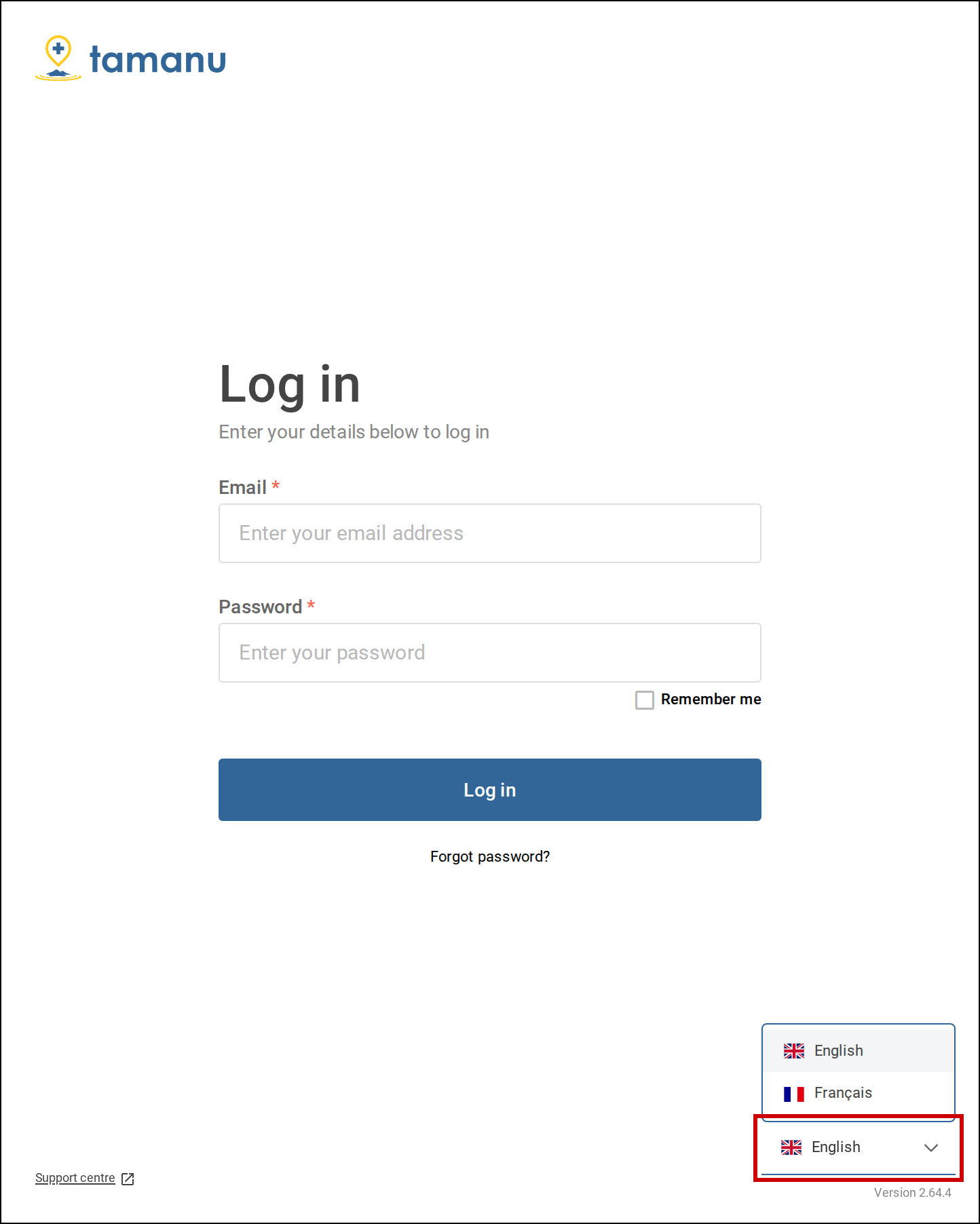
Select the language selector at the bottom right of the Log in screen. -
Choose your language.
The screen changes to that language straight away.
After logging in
-
If the sidebar is collapsed, select the arrow at the top of the sidebar to expand it.
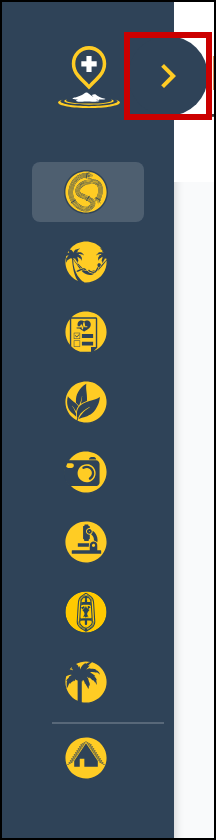
Select the arrow at the top of the collapsed sidebar to expand it. -
Select the menu button, shown as three dots, beside your name at the bottom of the sidebar.
A menu opens.
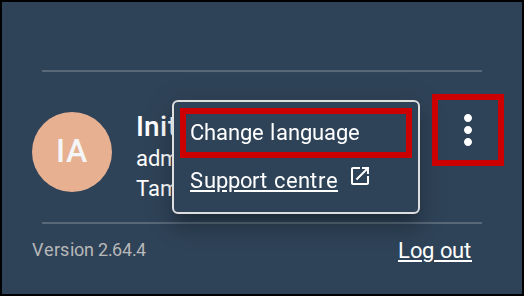
Select the three dots beside your name, then Change language. -
Select Change language.
The Change language window opens.
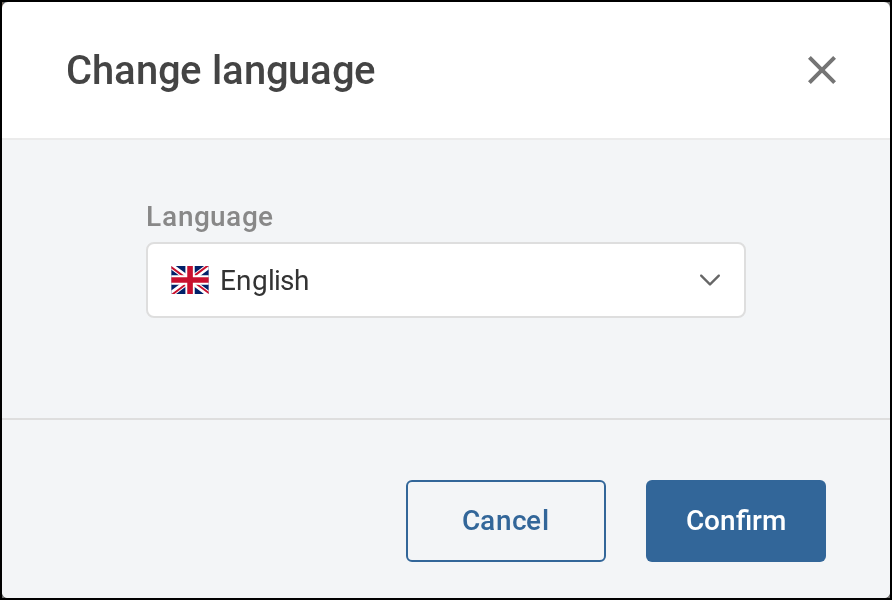
The Change language window. -
Choose your language from Language.
-
Select Confirm.
The window closes and Tamanu changes to that language.