1.1 Log in and out
Updated
Log in to Tamanu Desktop with your email address and password, and log out when you have finished. Start from your web browser.
Before you start
You need your site's Tamanu address, and the email address and password for your Tamanu account. Your system administrator gives you these.
Log in
-
Open your site's Tamanu address in your web browser.
The Log in screen opens. If you ticked Remember me last time, the heading says Welcome back and your email address is already filled in.
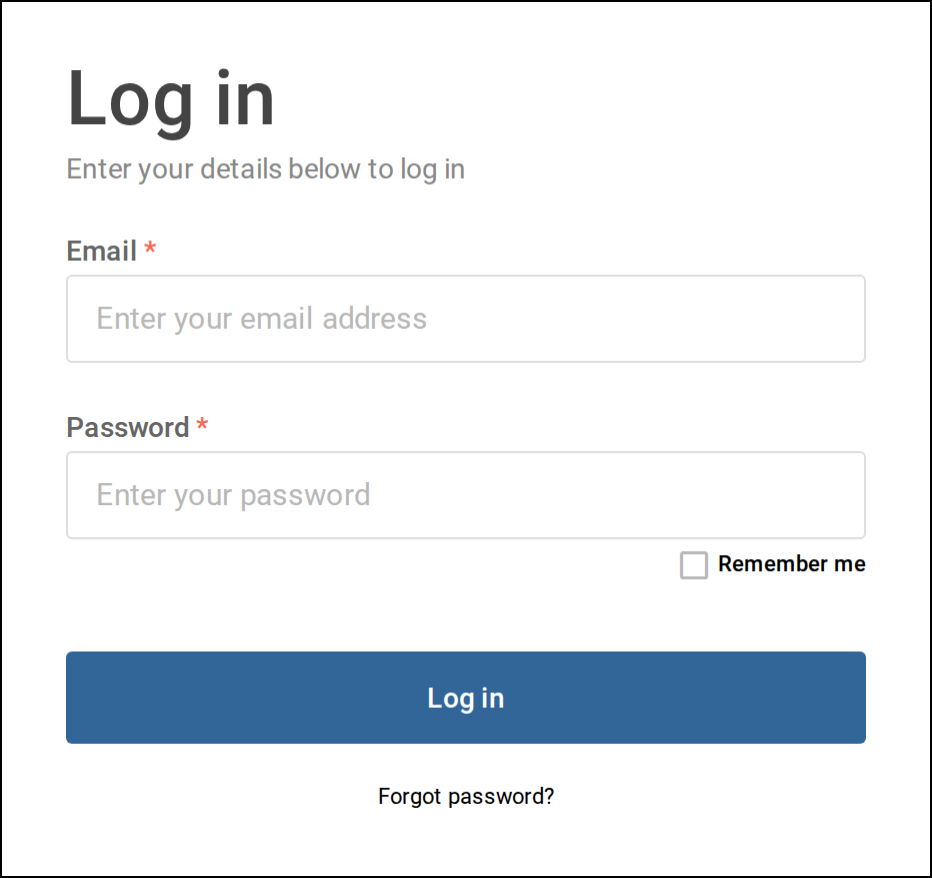
The Log in screen. -
Enter your email address in Email and your password in Password.
-
Tick Remember me if you want Tamanu to fill in your email address next time you log in on this computer.
Leave it unticked to have Tamanu forget your email address.
-
Select Log in.
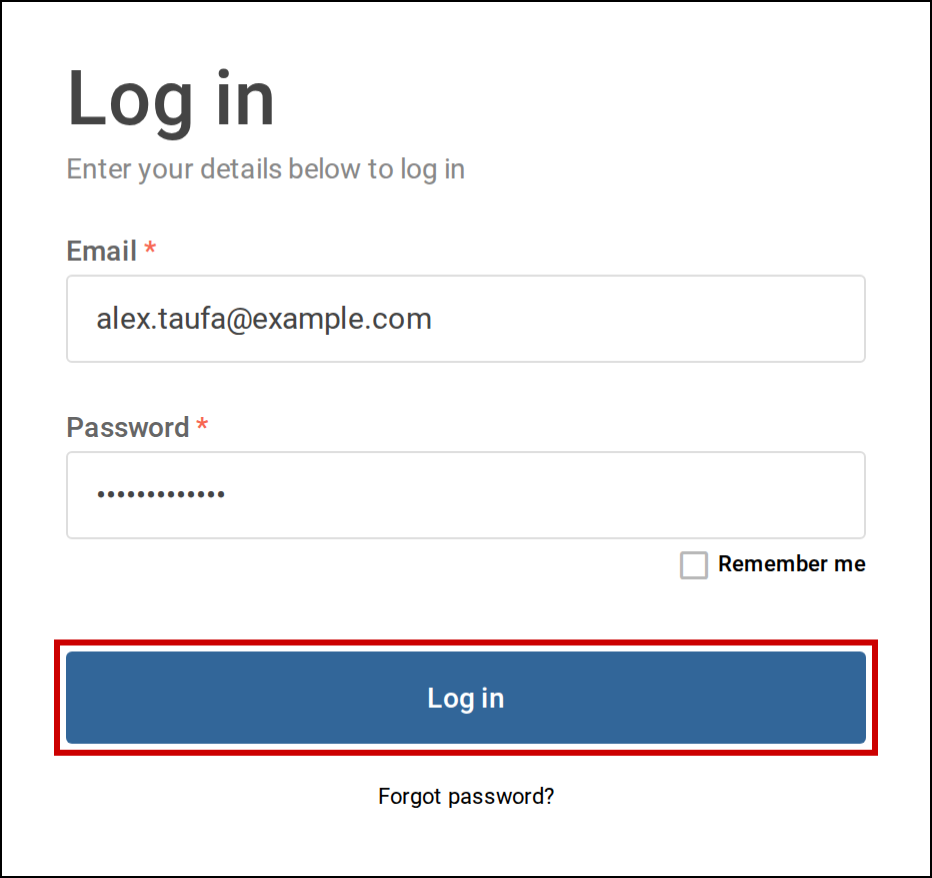
Enter your email address and password, then select Log in. If your email address or password is wrong, a message appears under the heading. It may tell you how many attempts you have left before you are locked out. If you are locked out, the message says how many minutes to wait before trying again. If you have forgotten your password, see Reset your password.
-
If the Select facility screen opens, choose where you are working from Facility, then select Submit.
This screen opens only when your account can work at more than one facility. Select Cancel to go back to the Log in screen.
Tamanu opens, with the sidebar on the left of the screen.
Log out
Your site may also log you out after a period of inactivity. Before it does, the Login timeout window counts down the seconds left. Select Stay logged in to carry on working, or Log out to log out straight away.
-
If the sidebar is collapsed, select the arrow at the top of the sidebar to expand it.
-
Select Log out at the bottom of the sidebar, beside the version number.
You cannot log out while you have a note open. Save or close the note first.
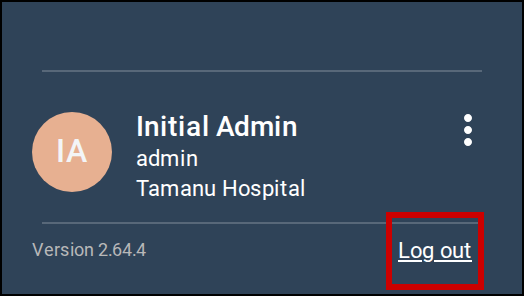
Select Log out at the bottom of the sidebar. The Log in screen opens.