1.2 Reset your password
Updated
Set a new password for your Tamanu account if you have forgotten yours. Start from the Log in screen.
Before you start
You need access to the email inbox for your Tamanu account, because Tamanu sends a reset code there.
Steps
-
Select Forgot password? under the Log in button.
The Forgot password screen opens. If you ticked Remember me when you last logged in, your email address is already filled in.
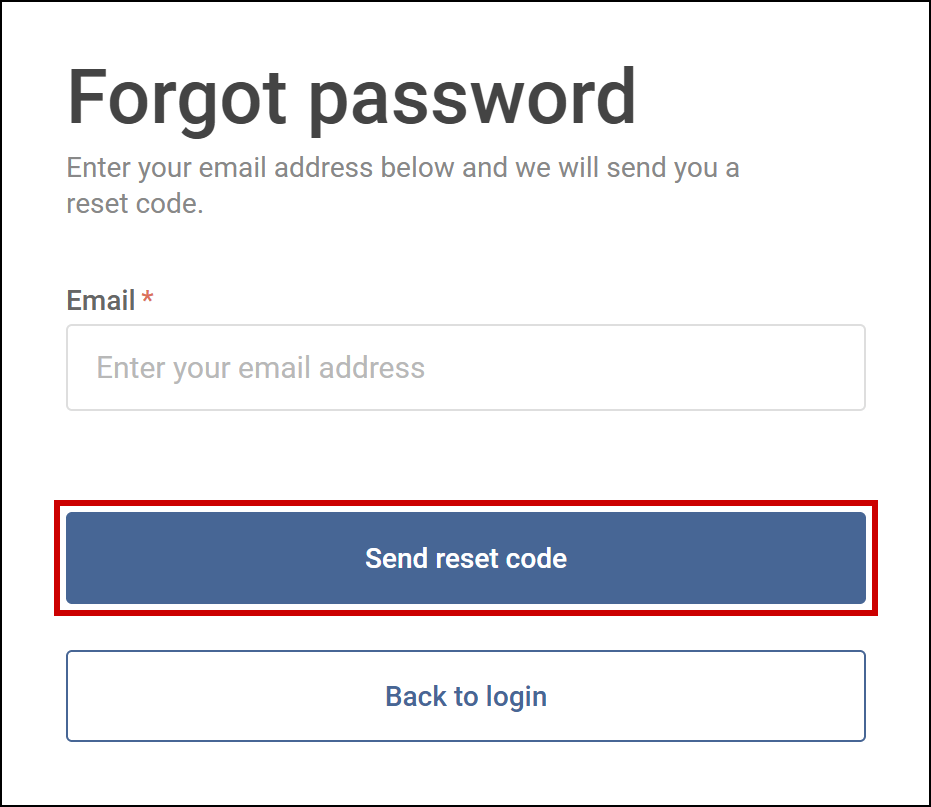
Enter your email address, then select Send reset code. -
Enter your email address in Email, then select Send reset code.
The Reset password screen opens. If the email address belongs to a Tamanu account, an email with a reset code is sent to it. If no email arrives, contact your system administrator.
-
Enter the code from the email in Reset code.
If the code is wrong, Code incorrect appears under the field. To get a new code, select Resend reset code, which takes you back to the Forgot password screen.
-
Enter your new password in New password, then enter it again in Confirm new password.
Your new password must be at least five characters long, and the two fields must match.
-
Select Reset password.
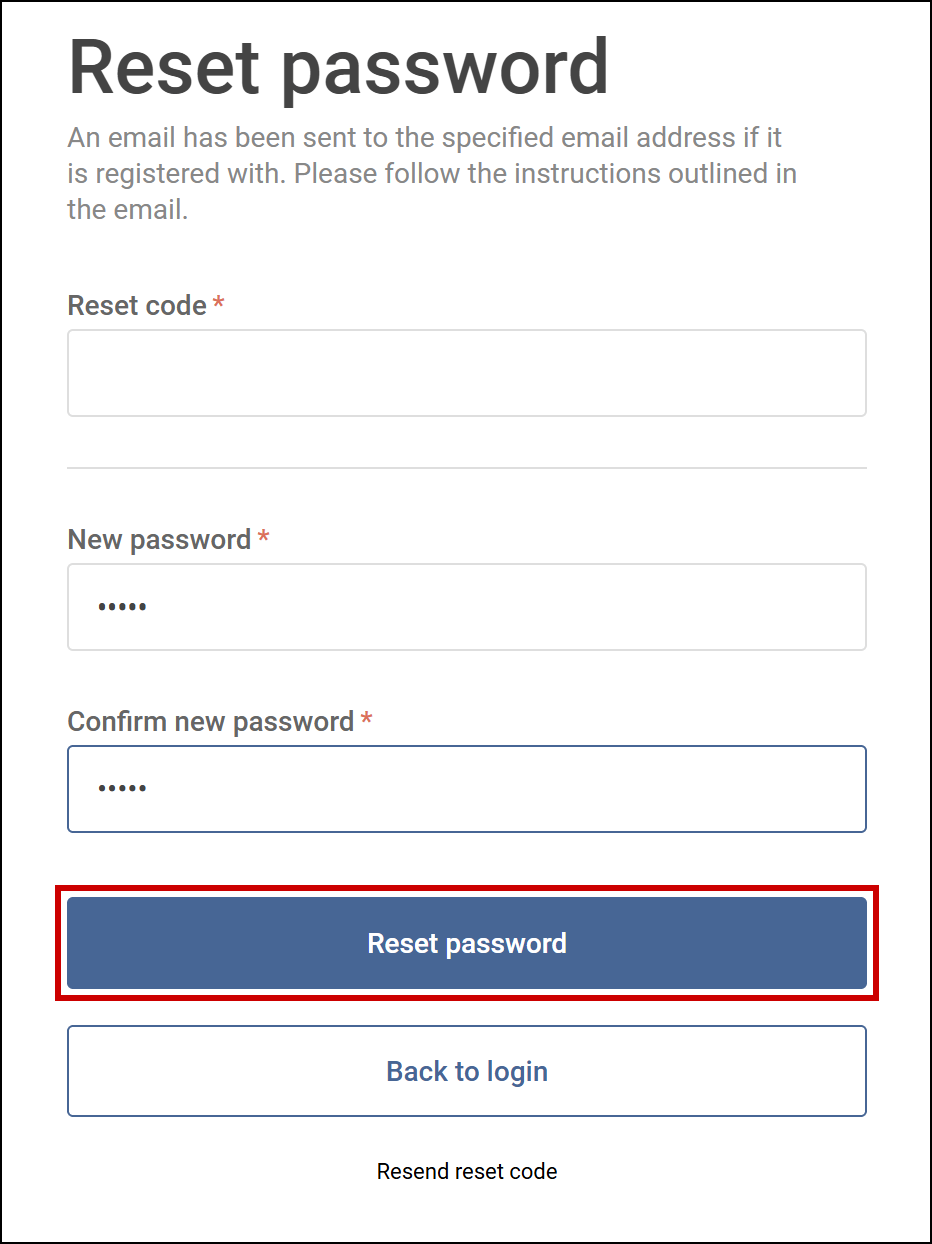
Enter the reset code and your new password, then select Reset password. Password successfully reset appears. Select Back to login, then log in with your new password, as described in Log in and out.
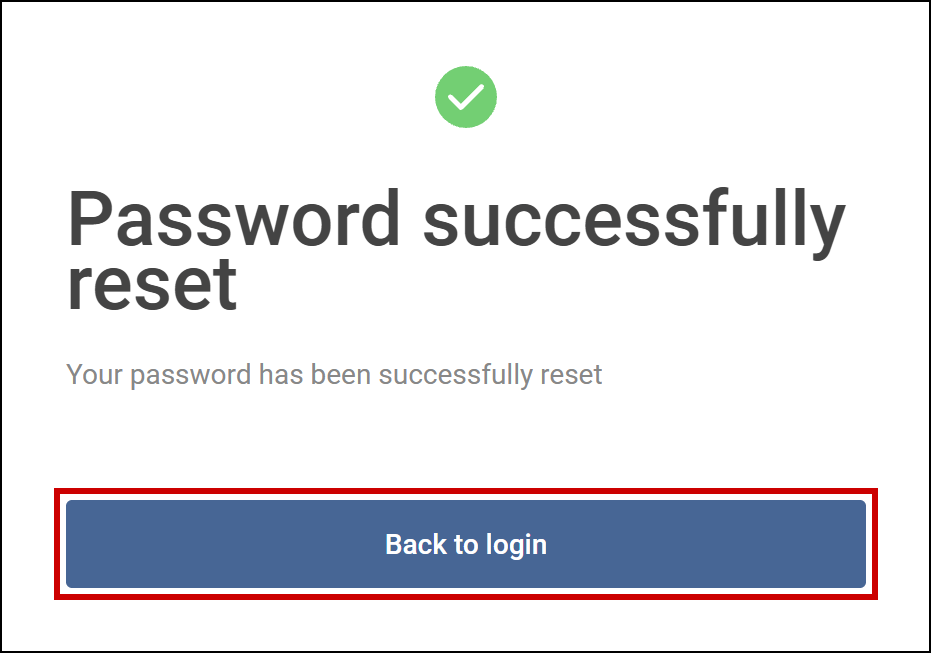
Select Back to login to log in with your new password.