3.1 Use your dashboard
Updated
Your dashboard is the landing page for Tamanu, the screen you see each time you log in. It gathers what you need for your shift: the patients you have looked at recently, your upcoming tasks, today's appointments and bookings, and your notifications. To return to it, select Dashboard in the sidebar.
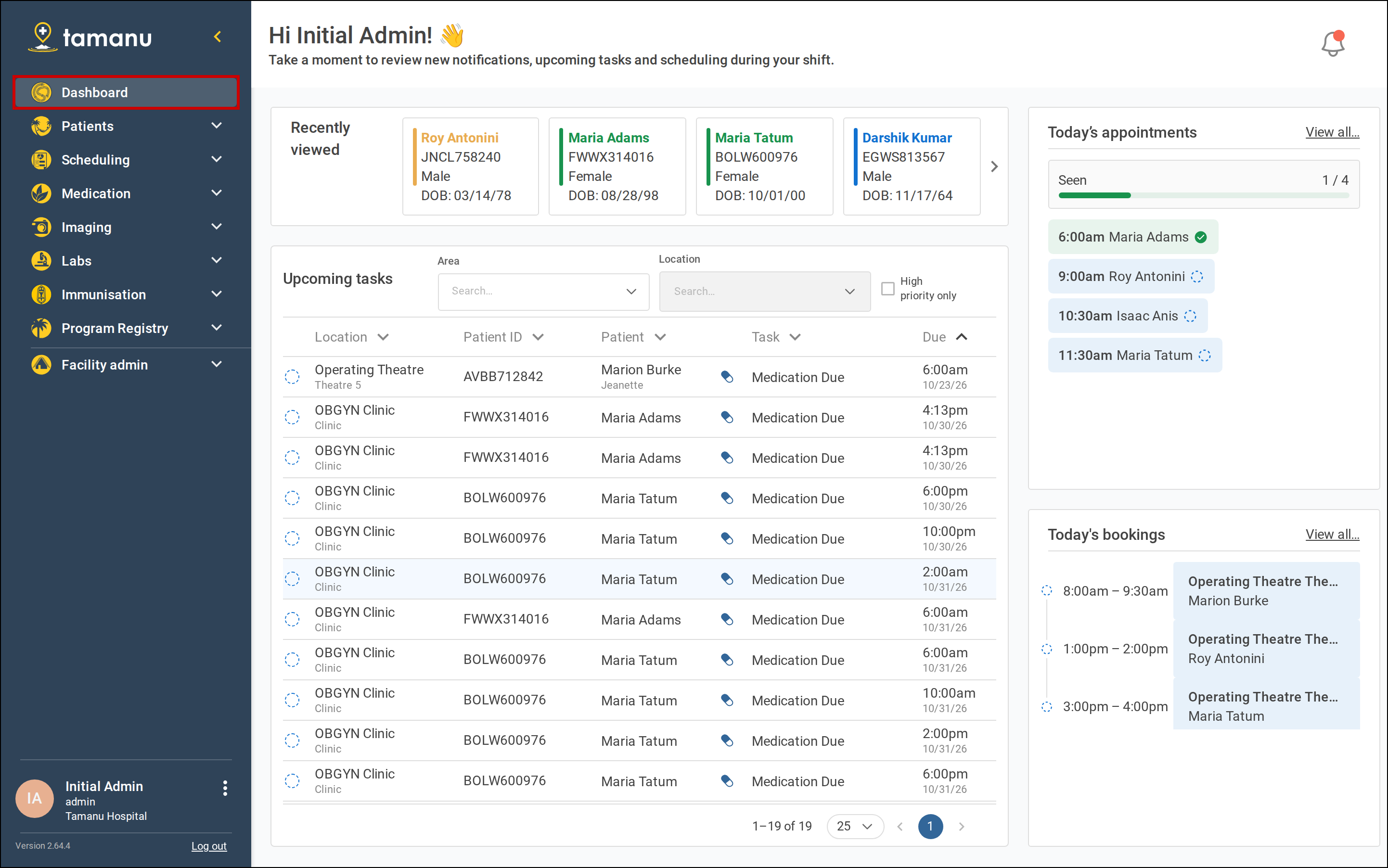
Before you start
What your dashboard shows depends on your permissions and how your site is set up:
- Upcoming tasks shows only if your site uses tasks and you can view them. See Work through your upcoming tasks
- Today's appointments shows only if you can view appointments and have been the clinician on at least one outpatient appointment
- Today's bookings shows only if you can view appointments and have been the clinician on at least one location booking
If none of these show, the dashboard shows Welcome to Tamanu! instead. Contact your system administrator if you believe you should see a section that is missing.
Open a recently viewed patient
Recently viewed appears at the top of the dashboard once you have opened a patient's record.
-
Find the patient in Recently viewed.
Each card shows the patient's name, ID, sex and date of birth. If there are more patients than fit, select the arrows at either end of the row to see the rest.
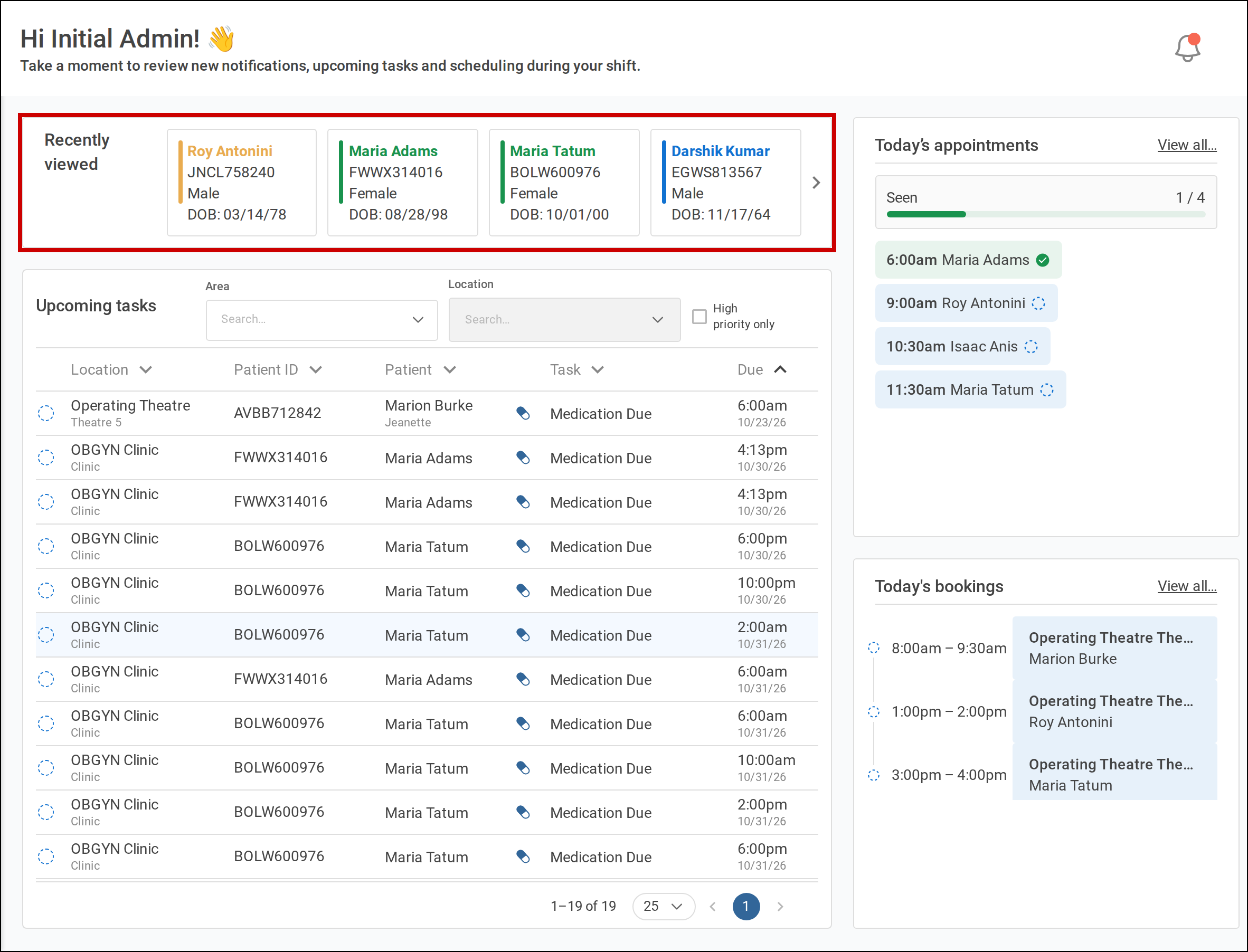
Recently viewed runs across the top of the dashboard. -
Select the patient's card.
The patient's record opens.
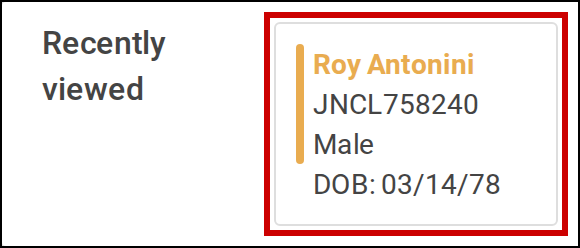
Select a patient's card to open their record.
Check today's appointments
-
Find Today's appointments.
It lists the outpatient appointments you are the clinician for today. Each shows its time and the patient's name, and its colour and icon show its status. Seen above the list counts how many of today's appointments have been seen, and its bar fills as they are.
If you have no appointments today, the pane says so. Select Outpatient appointments to see other appointments.
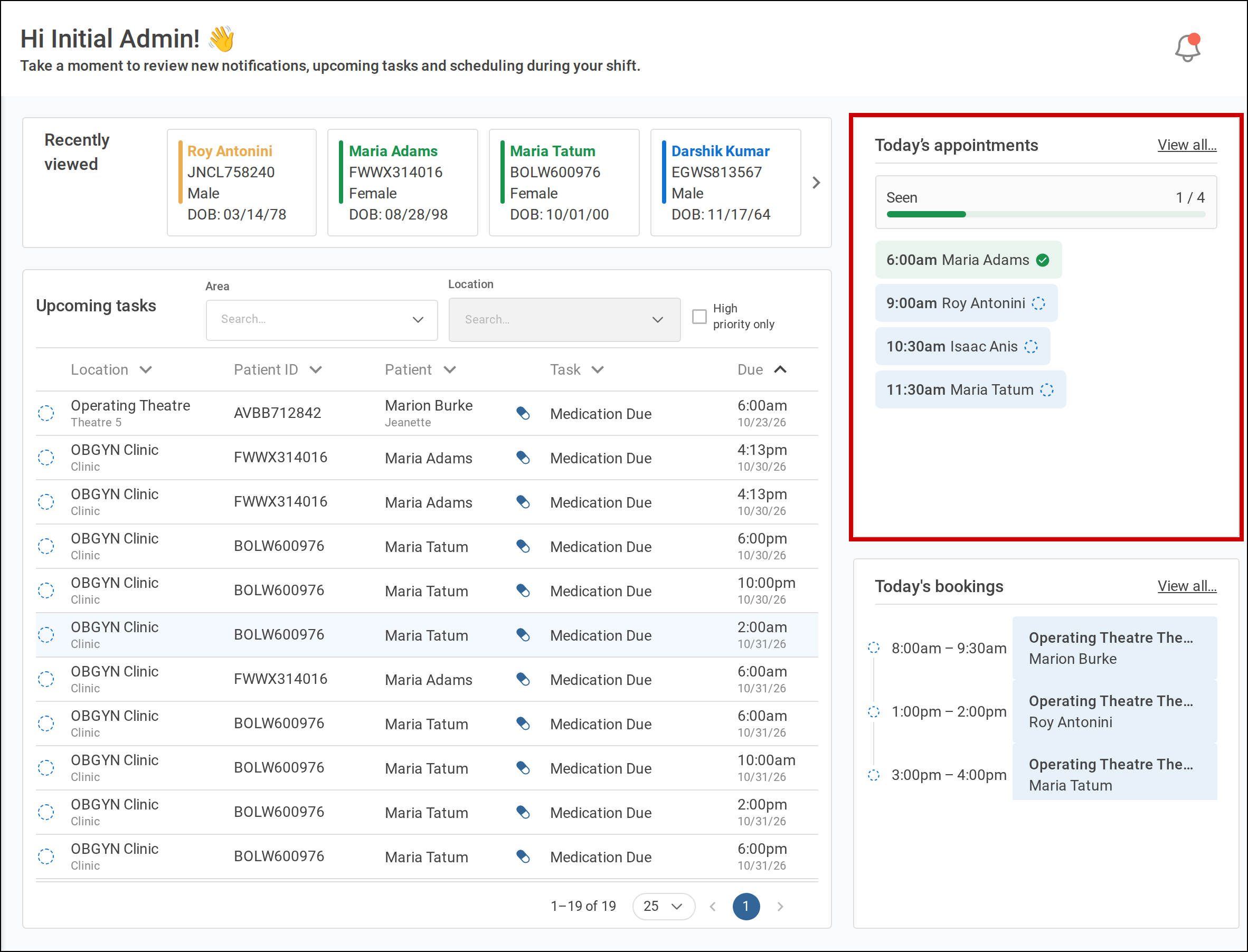
Today’s appointments sits at the top right of the dashboard. -
Select View all… to open the outpatient appointments calendar, grouped by clinician.
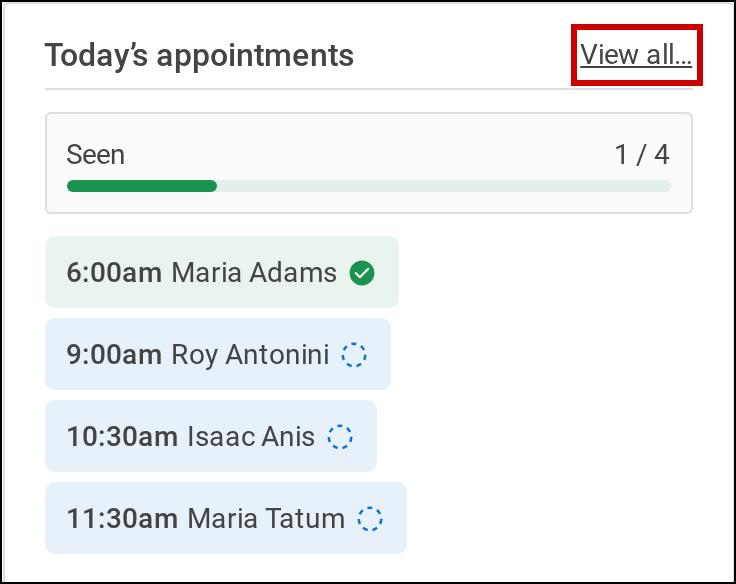
Select View all… to open the outpatient appointments calendar.
Check today's bookings
-
Find Today's bookings.
It lists the location bookings you are the clinician for today. Each shows its time, its area and location, and the patient's name. The icon beside each booking shows its status.
If you have no bookings today, the pane says so. Select Location bookings to see all bookings.
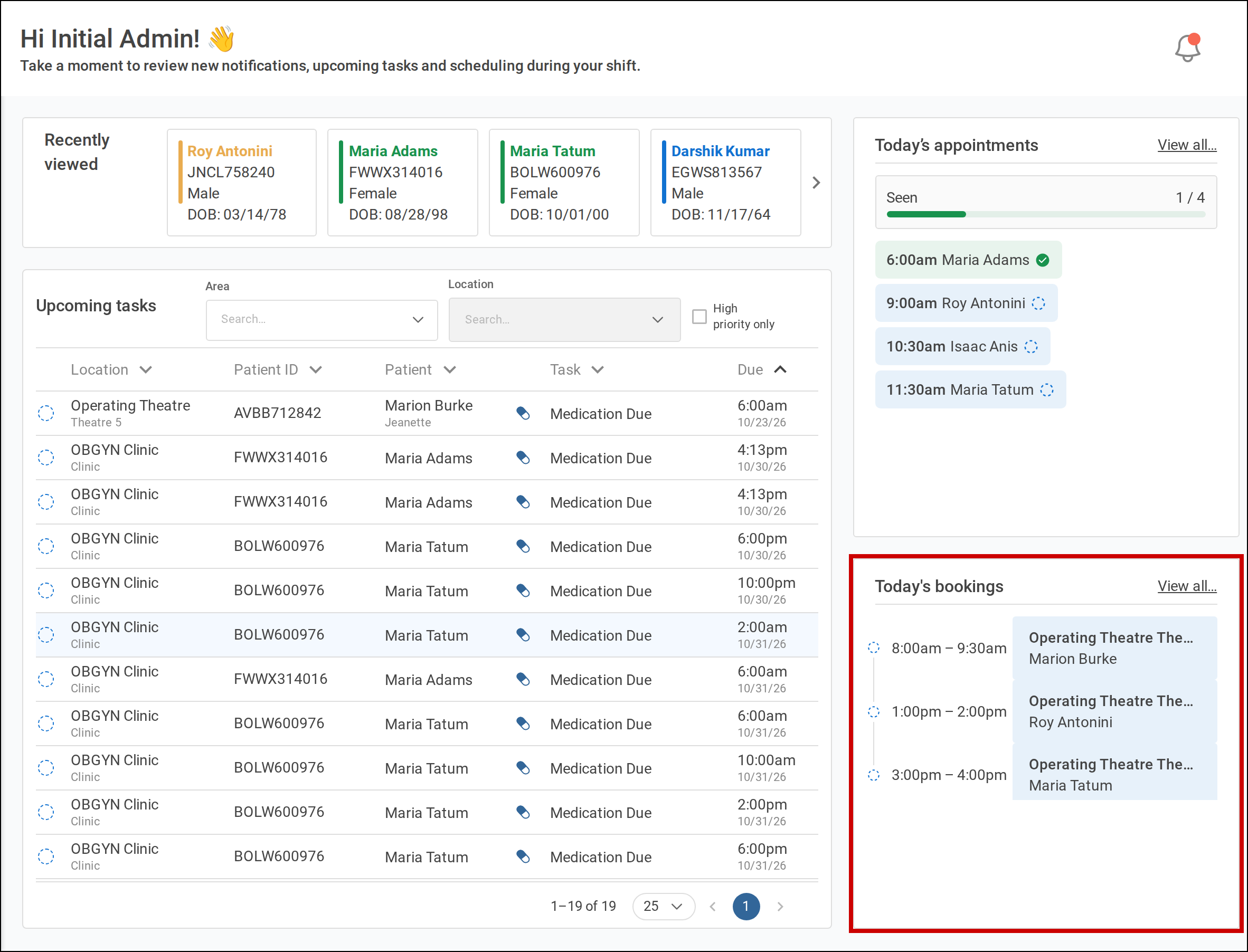
Today's bookings sits below Today’s appointments. -
Select View all… to open the location bookings calendar, showing only your bookings.
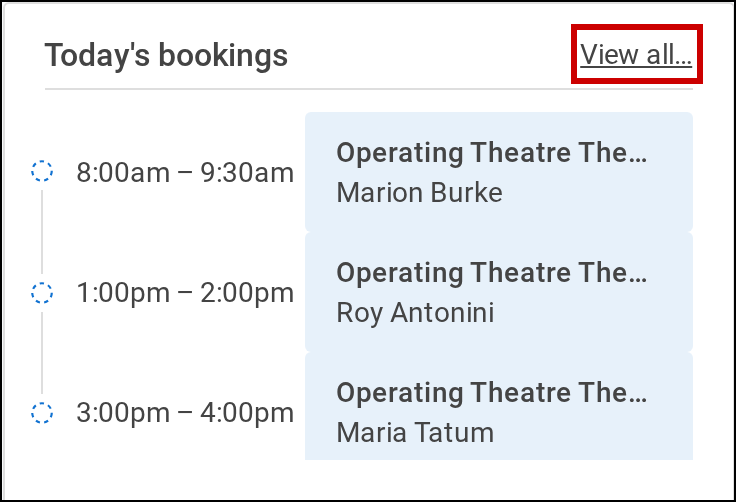
Select View all… to open the location bookings calendar.
Check your notifications
Tamanu notifies you when:
- results or interim results are available for a lab request you made, its results are amended or invalidated, or its sample is rejected
- results are available for an imaging request you made
- pharmacy adds a note to a medication you prescribed
- a medication you prescribed is recorded as not dispensed
-
Select the bell at the top right of the dashboard.
A red dot on the bell means you have unread notifications.
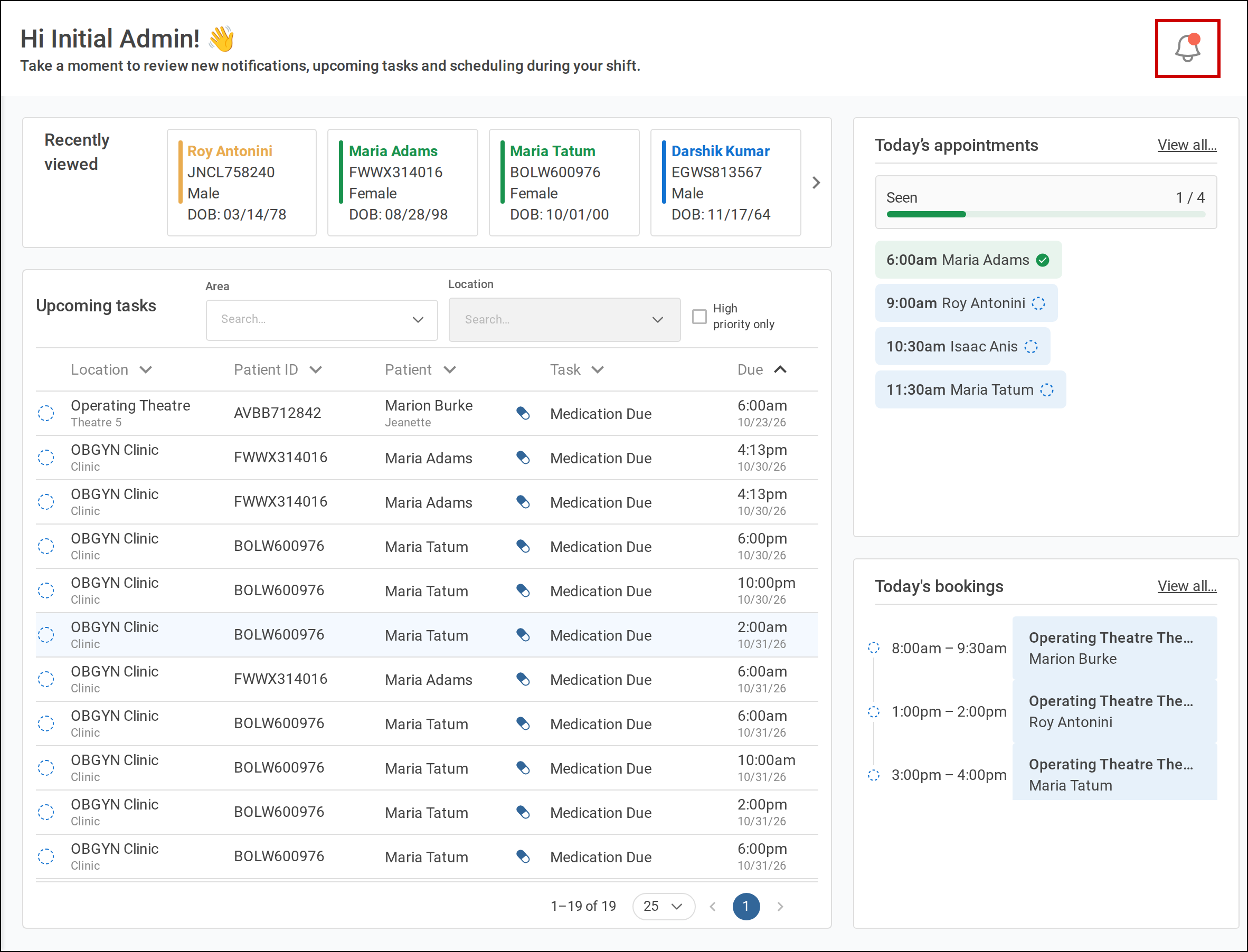
Select the bell at the top right of the dashboard. The Notifications panel opens on the right. Unread notifications are listed first, under Unread. Below them, Recent (last 48 hours) lists the notifications you have read that arrived in the last 48 hours. Your site can set a different period, and the heading shows the one that applies.
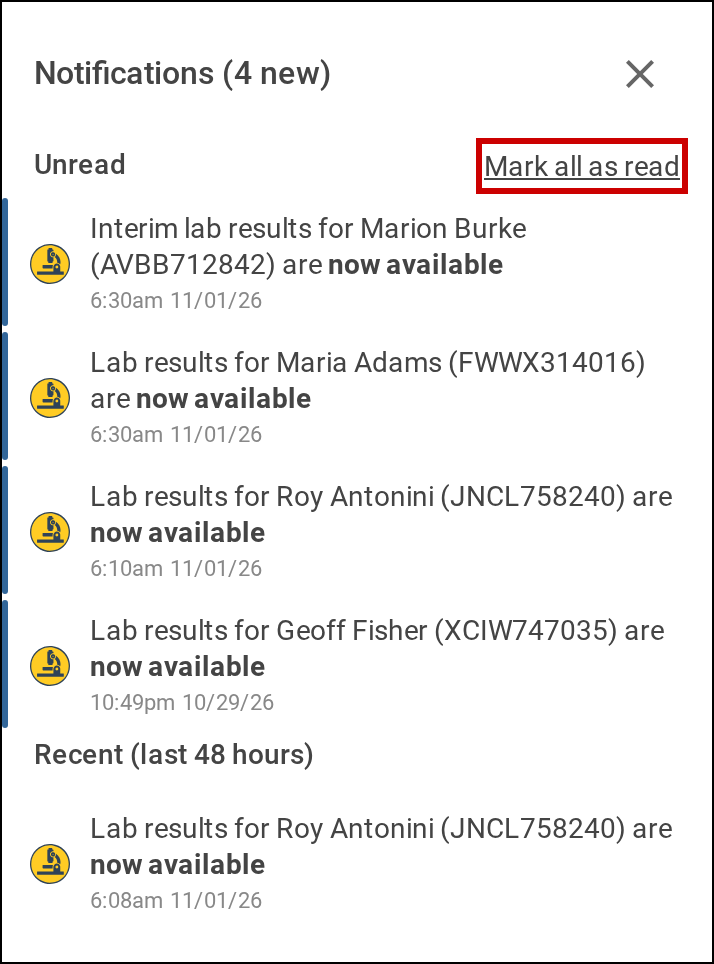
The Notifications panel lists Unread notifications above Recent (last 48 hours). -
Select a notification to open it.
The notification is marked as read, and the lab request, imaging request or the encounter's medications open.
-
To mark every unread notification as read without opening them, select Mark all as read.
-
To close the panel, select the cross at its top right, or anywhere outside it.