2.1 Use the sidebar
Updated
Move between the areas of Tamanu with the sidebar on the left of the screen. The sidebar is there on every screen once you have logged in, and Tamanu opens on its first section, usually Dashboard.
Before you start
The sidebar shows only the sections your site uses and your account can open, so yours may list fewer sections than described here. Contact your system administrator if you believe you should be able to open a section you cannot see.
Open a page
-
Select a section in the sidebar, such as Patients.
The section opens to list its pages, and any other open section closes. Dashboard has no pages under it, so it opens straight away.
-
Select the page you want.
The page opens, and stays highlighted in the sidebar while you are on it. To close a section's list of pages, select the section again.
You cannot leave a patient's record while you have a note open. Save or close the note first.
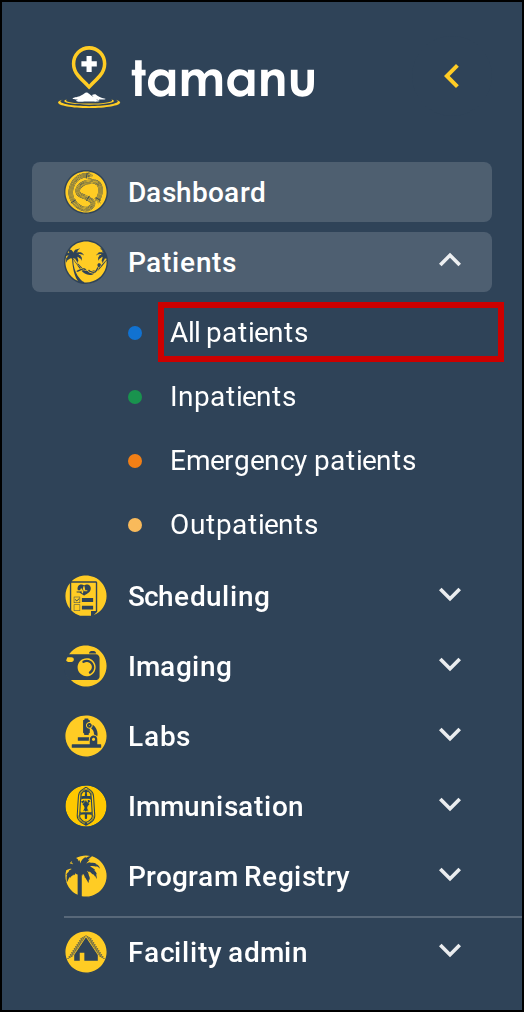
Select a section, then select the page you want.
Collapse and expand the sidebar
-
Select the arrow at the top of the sidebar, beside the Tamanu logo.
The sidebar narrows to show only an icon for each section, leaving more room for the page.
-
To expand the sidebar again, select the arrow, or select any of the icons.
Selecting an icon expands the sidebar without leaving the page you are on. If the section has pages under it, they are listed.
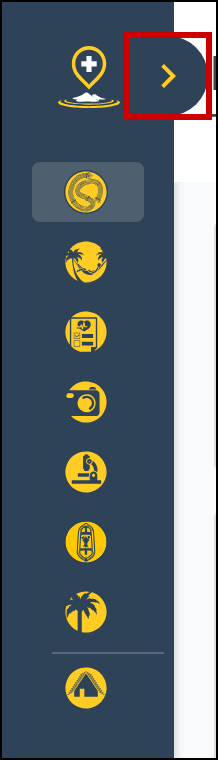
Select the arrow to expand the sidebar.
Get help
-
If the sidebar is collapsed, select the arrow at the top of the sidebar to expand it.
The bottom of the sidebar shows your name, your role and the facility you are logged in to, with the Tamanu version number beneath. Log out is beside the version number. See Log in and out.
-
Select the menu button, shown as three dots, beside your name.
A menu opens. To change the language Tamanu is shown in, see Change your language.
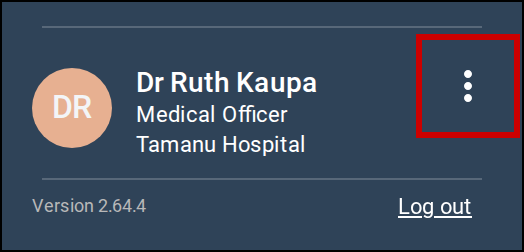
Select the menu button beside your name. -
Select Support centre.
Your site's support centre opens in a new browser tab.